Every December the family squeezes onto the sofa in front of the tree, someone sets the timer, and everyone can see the space where Dad, Grandma or your husband used to sit. For a lot of families that photo is the hardest one of the year to take.
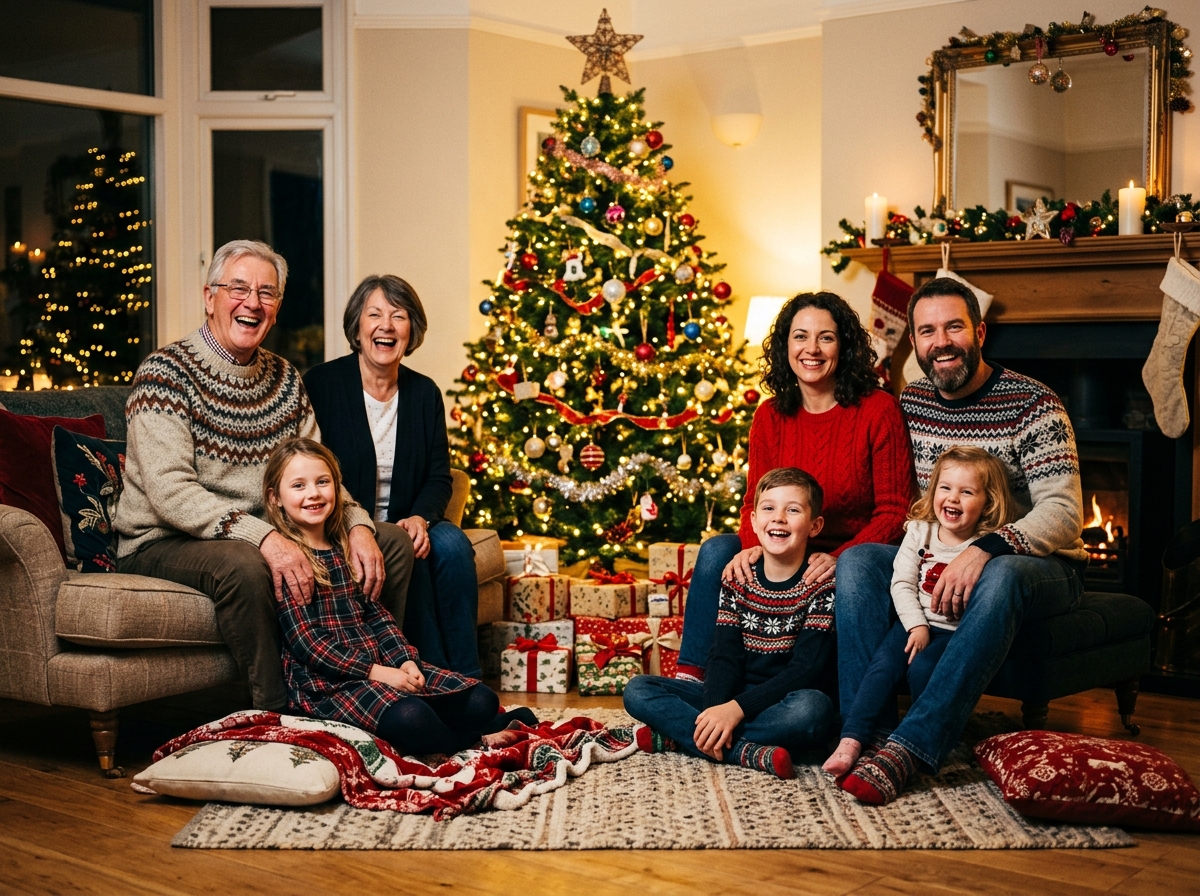
You can now add a loved one who has passed away into this year’s Christmas photo, so the picture on the card, the fridge or the mantelpiece has everyone in it again. This guide shows you how to do it so the result looks like a real family photo and not a cut-and-paste job: which photos to use, where to place them, how to match the Christmas lighting, and what to check before you print.
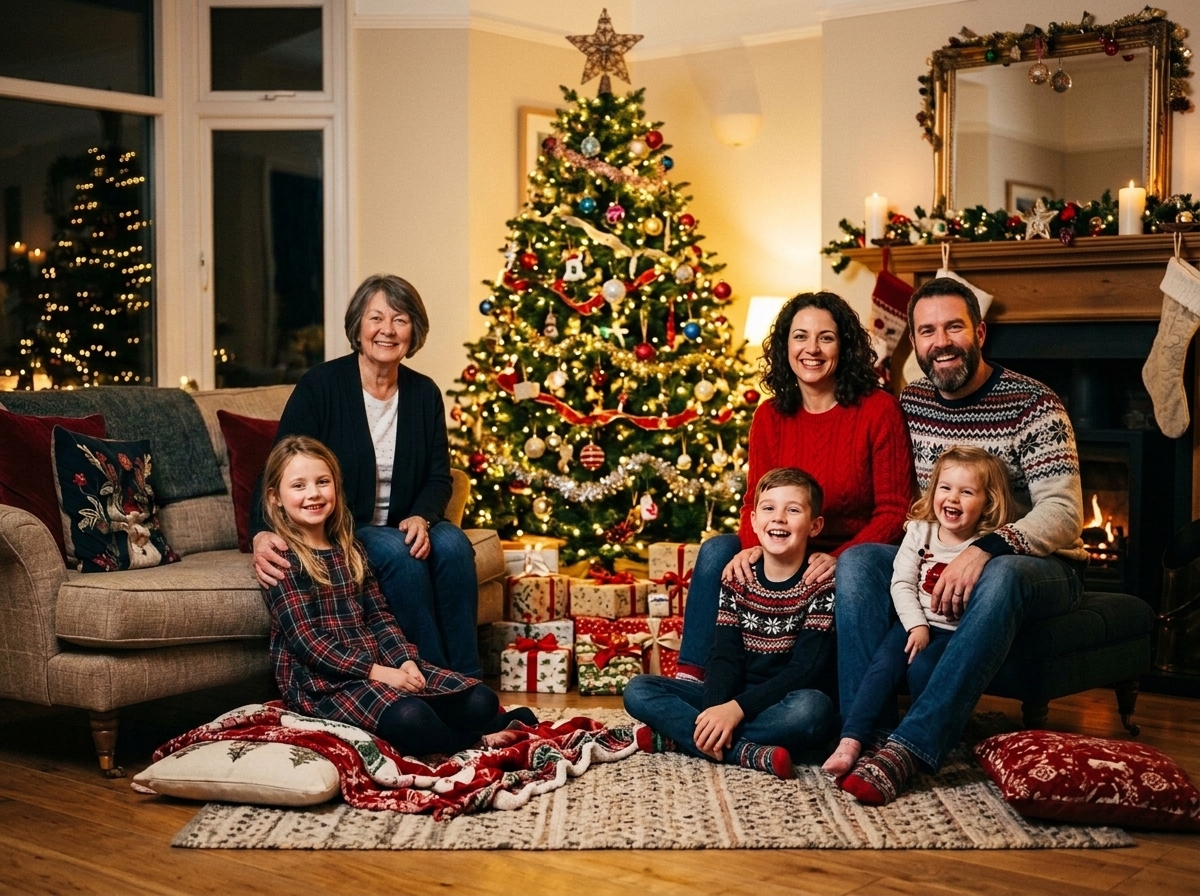
The short answer: take your Christmas family photo as normal, leaving a natural gap where they would sit. Choose one clear, front-facing photo of your loved one on their own. Upload both to an add a deceased loved one to a photo tool, which places them into the scene and matches the light, size and shadows. Check their face at full size, then show it to the closest family before you share it.
What you need
Just two photos:
- This year’s Christmas family photo. The one by the tree, at the dinner table or on the sofa. A phone photo is fine.
- One photo of your loved one on their own. Ideally clear, well lit and facing the camera. If the only photo you have is old, faded or black and white, that can still work. See the section on old photos below.
The quality of these two photos decides most of the result, so it’s worth five minutes choosing them well.
Step 1: Take the Christmas photo with them in mind
If you haven’t taken this year’s photo yet, you can make the next steps much easier:
- Leave a gap where they would naturally be. An empty cushion next to their partner, a space at the end of the row, or a chair beside the grandchildren. A natural gap gives a far more believable result than squeezing someone into a tight group.
- Keep everyone fully in the frame. Don’t crop people at the edges, and leave a little room around the group.
- Use soft, even light. Tree lights plus a lamp or two looks warm and gives the AI something consistent to match. Avoid one bright window behind everyone, which turns faces into silhouettes.
- Shoot at eye level. A camera on a shelf at roughly head height makes it easier to place someone at the right size than a photo taken from high above.
If you’ve already taken the photo, that’s fine. Pick the shot with the most natural space in it.
Step 2: Choose the right photo of your loved one
This is the step that matters most. The AI can only work with the face it’s given, so:
- Pick the face the family remembers. A relaxed photo from their later years usually works better than a formal portrait from decades earlier. If the grandchildren knew Grandma at 75, a photo of her at 30 will feel like a stranger to them.
- Face towards the camera, eyes open. Slightly turned is fine. Side profiles, sunglasses and hats pulled low make it much harder to keep their likeness.
- Just them. If your best photo has other people in it, crop it tightly around your loved one first.
- Match the pose if you can. If the family is sitting on the sofa, a seated or chest-up photo of them blends in better than a full-length standing shot from a beach.
- Not too small. A face cropped out of a distant group photo is often only a few dozen pixels wide. Use the largest, sharpest version you have.
Step 3: Restore their photo first if it’s old or damaged
Often the best photo of someone is decades old: creased from a wallet, faded from years on a shelf, or a small print from an old camera. Scratches and fading on their face make it harder for the AI to keep their likeness, so restore the photo first. On BringBack that’s 1 credit.
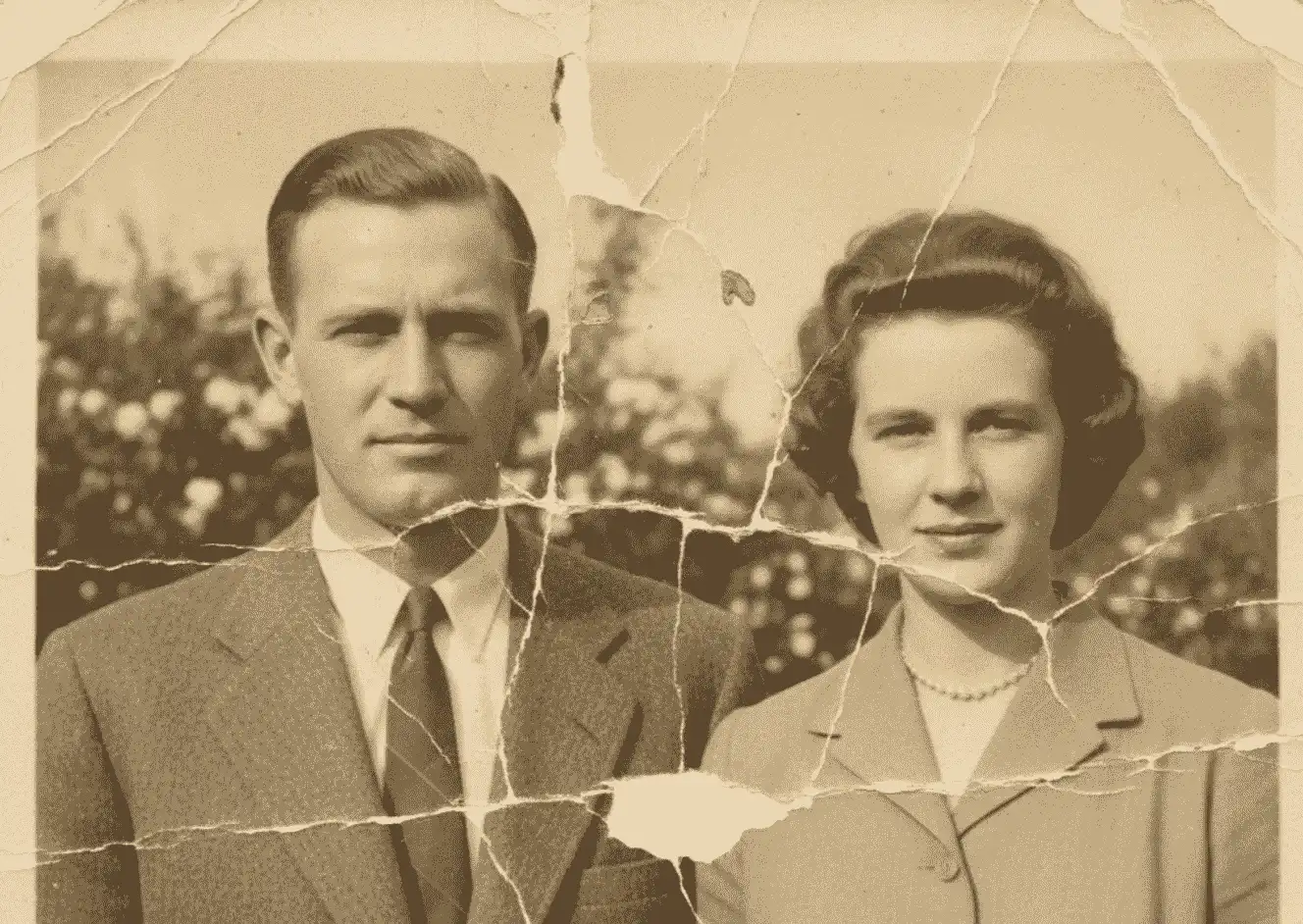
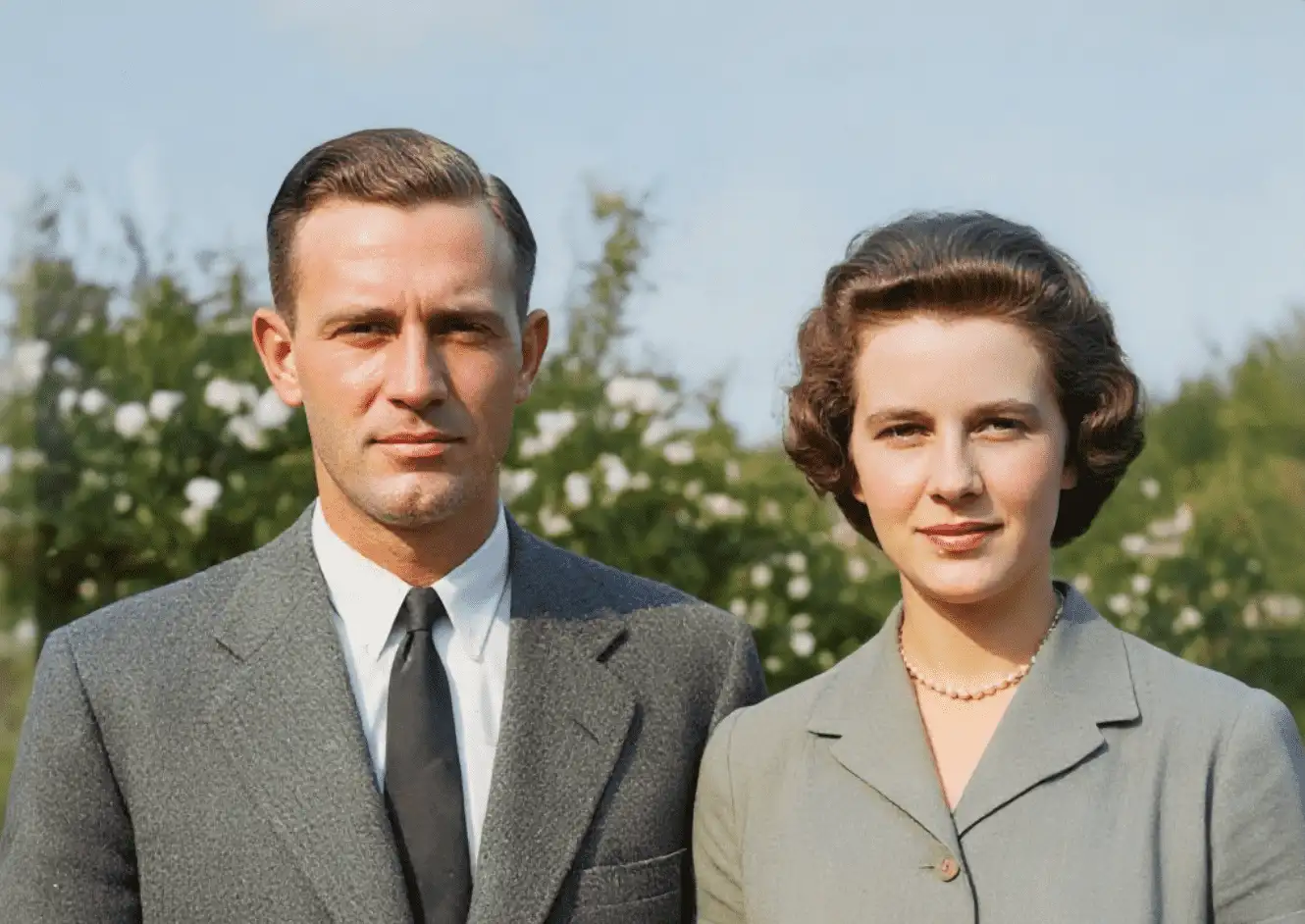
If their photo is black and white, they’ll usually appear in color in the finished Christmas photo so they match everyone else. Those colors are the AI’s best guess, so check their skin tone and hair color against what the family remembers.
Step 4: Add them to the photo
Open BringBack’s add a deceased loved one to a photo tool in any browser, on your phone or computer. Upload your Christmas photo and the photo of your loved one. The AI places them into the scene and adjusts three things that make the difference between “added” and “there”:
- Light: the warm glow of the tree and lamps falls on them the same way it falls on everyone else.
- Size: they’re the right height next to the people beside them, at the same distance from the camera.
- Shadows: they sit into the sofa or stand on the floor rather than floating on top of the picture.
Each run uses 2 credits. If you want to add two people, for example both grandparents, add one, then use that result as the base photo and add the second.
Step 5: Check the result before anyone else sees it
Zoom in and look at their face at full size, not just the thumbnail. AI can subtly change a face, especially when it starts from a small or damaged photo: a slightly different smile, a younger jawline, eyes a little too bright. Ask yourself one question: would their sister recognize them instantly? If not, try again with a better photo of them rather than settling.
Then check the scene as a whole: hands, the edge of the sofa, and whether anyone else in the photo has changed.
Where to place them so it looks natural
Placement does more for how the photo feels than anything else:
- Next to the person they were closest to. Beside their husband or wife, or with a grandchild by their side, is where the family expects to see them.
- Seated works better than standing in most living-room Christmas photos, especially for grandparents.
- At the edge rather than the center. Front and center holding a present tends to look staged. A quieter spot feels more like they were simply there.
- Clothes that fit the scene. A photo of them in a T-shirt on a summer beach can look out of place beside everyone’s Christmas sweaters. If you have a winter photo of them, use it.
Common problems and how to fix them
| Problem | Usual cause | Fix |
|---|---|---|
| They don’t quite look like themselves | Small, blurry or damaged source photo | Restore the photo first, or use a larger, sharper photo of them |
| They look too big or too small | Very different camera distance in the two photos | Use a chest-up photo for a sofa scene, and a base photo taken at eye level |
| They look pasted in | No natural gap, or harsh light from one window | Choose a base photo with space and soft, even light |
| Their clothes look wrong for Christmas | Summer or formal photo of them | Use a photo where they’re dressed for the season, if you have one |
| Skin or hair color looks off | Their photo was black and white | Compare with how the family remembers them and try another photo if needed |
Before you share it: show the family first
Not everyone grieves the same way. Show the photo privately to the people who were closest to them, like their partner or their children, before it goes on the family group chat, social media or a card. Most families are moved by it. Some people need a moment, and it’s kinder to give them that in private.
Using the photo on Christmas cards, frames and ornaments
If the photo goes on a Christmas card, add a short line so nobody, especially younger relatives, mistakes it for a photo that was taken this year. Some wording families use:
- “With Dad, always.”
- “All of us together for Christmas, Grandma included.”
- “Missing Mom this Christmas, and keeping her close.”
- “Merry Christmas from all of us, and from Grandpa in heaven.”
The same photo also makes a meaningful gift: framed for a widowed parent, or printed small for a photo ornament or “Christmas in heaven” frame. For an ornament, crop tightly around the family, because most ornament windows are only two or three inches across. Order prints early, as printers’ Christmas cut-off dates come sooner than most people expect.
Some families also animate a photo of their loved one, a five-second clip where they smile or blink, and play it on the TV on Christmas Eve. It’s very personal, so ask the closest family first. We wrote more about whether it’s okay to animate someone who has died.
Frequently asked questions
Can I add a deceased loved one to a Christmas photo for free?
Not on BringBack: there’s no free version. Adding a person uses 2 credits, and the smallest pack is $4.99 for 4 credits, so you get two attempts. Credits are a one-time purchase, with no subscription, and they don’t expire.
Can I do it on my phone?
Yes. BringBack works in your phone’s browser, so you can upload both photos straight from your gallery and download the finished photo to the same place. There’s nothing to install.
Can I use an old black-and-white photo of them?
Yes. Restore it first if it’s scratched or faded. They will usually appear in color to match the rest of the family, so check that their skin tone and hair color look right.
Can I add more than one person?
Yes, one at a time. Add the first person, then use that result as the base photo and add the second. Each run uses 2 credits.
What if we don’t have a Christmas photo of the family together this year?
If the family is spread out too, you can create a new portrait from separate photos of each person with the AI family portrait generator, which has a Christmas Holiday setting with a decorated tree.
Will it look like a real photo?
It’s designed to look like one photo with consistent light, size and shadows, and with good source photos it usually does. It is still an AI-created image, so check their face carefully and be open with the family that it’s a tribute.
A Christmas photo with everyone in it won’t replace them. But for many families it’s the picture they end up keeping on the mantelpiece long after the decorations come down.