Multi-Photo Compositing

Add a Loved One
to a Family Photo
with AI Harmonization

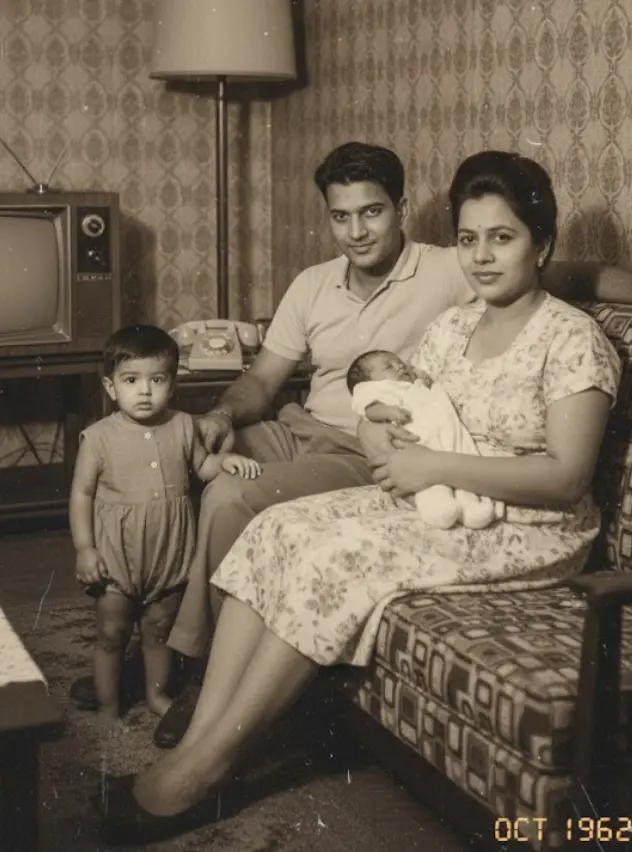
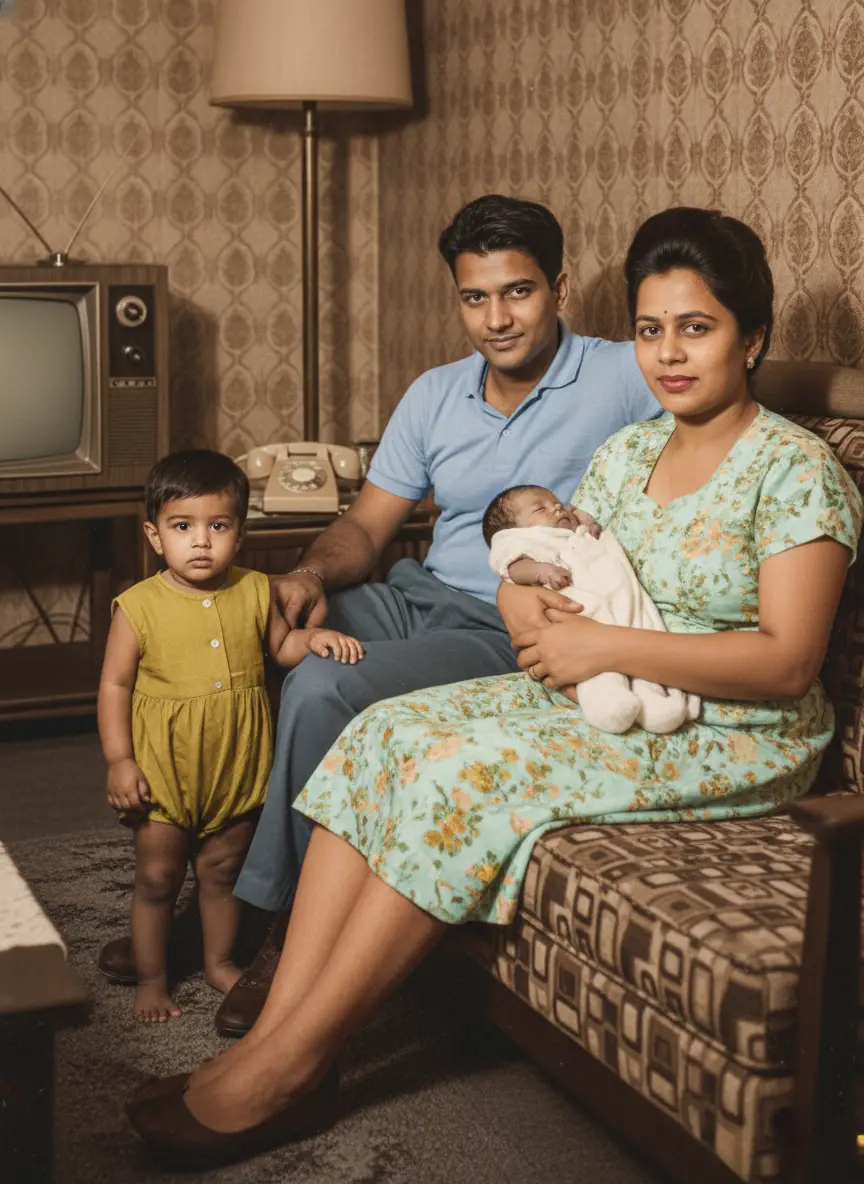
Combine separate portraits into a single cohesive group photo. BringBack matches lighting direction, color temperature, skin tones, and film grain so the composite looks authentic.

100% Private & Secure
Grain & Light Matching
Side-by-Side Review
Add person to family photo workflow illustration
// USE CASES //

Common Uses of BringBack AI
to Add People

Drag the interactive slider on each photo to see how BringBack seamlessly inserts missing relatives into family memories.

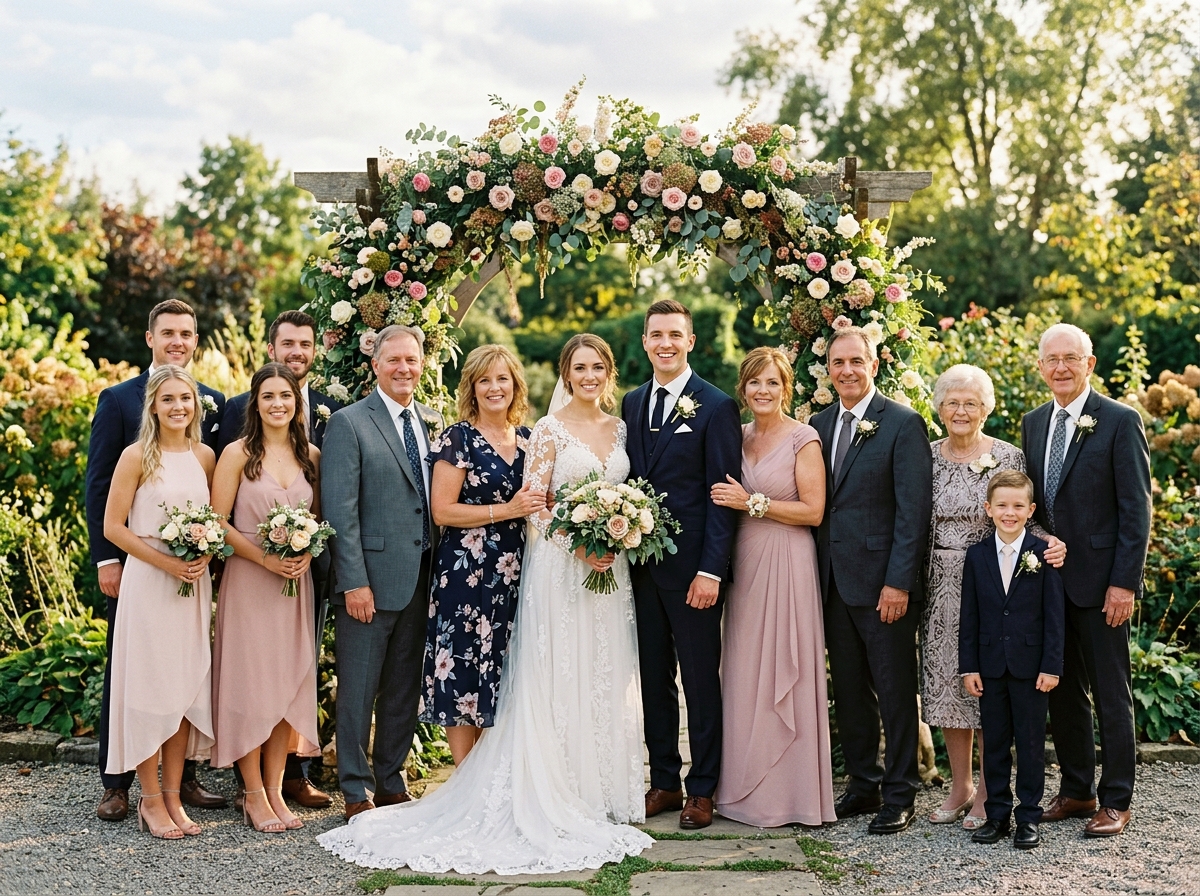
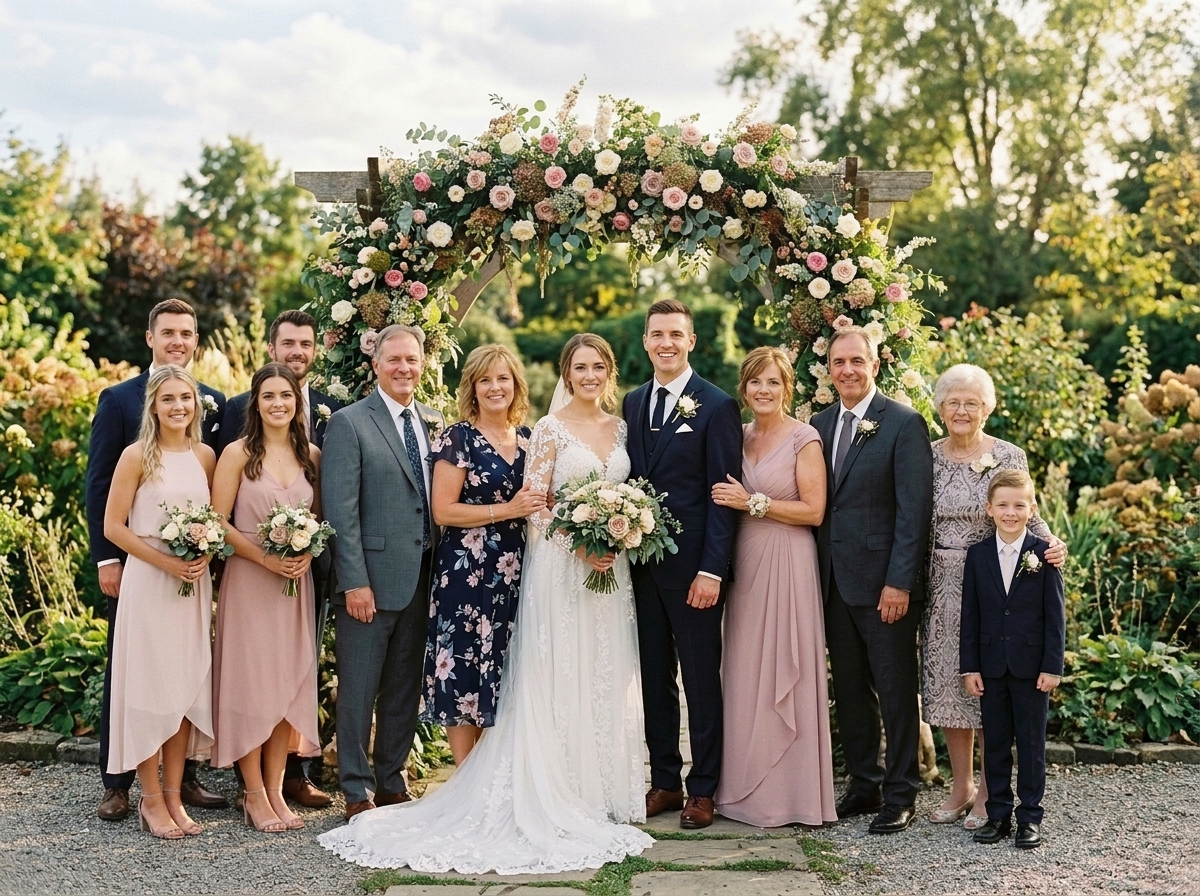
Result photo with Add a Passed Parent or Grandparent to Your Wedding AlbumOriginal base photo before adding person for Add a Passed Parent or Grandparent to Your Wedding Album
Original Base Photo
Loved One Added
Drag slider to compare
Wedding Memorial

Add a Passed Parent or Grandparent to Your Wedding Album

When a parent or grandparent passes away before your wedding day, BringBack places them beside the bride or groom in their formal attire. We match outdoor sunlight, shadows, and camera angles so the memory feels complete.

Result photo with Add Relatives Who Couldn't Attend the Family GatheringOriginal base photo before adding person for Add Relatives Who Couldn't Attend the Family Gathering
Original Base Photo
Loved One Added
Drag slider to compare
Family Reunion

Add Relatives Who Couldn't Attend the Family Gathering

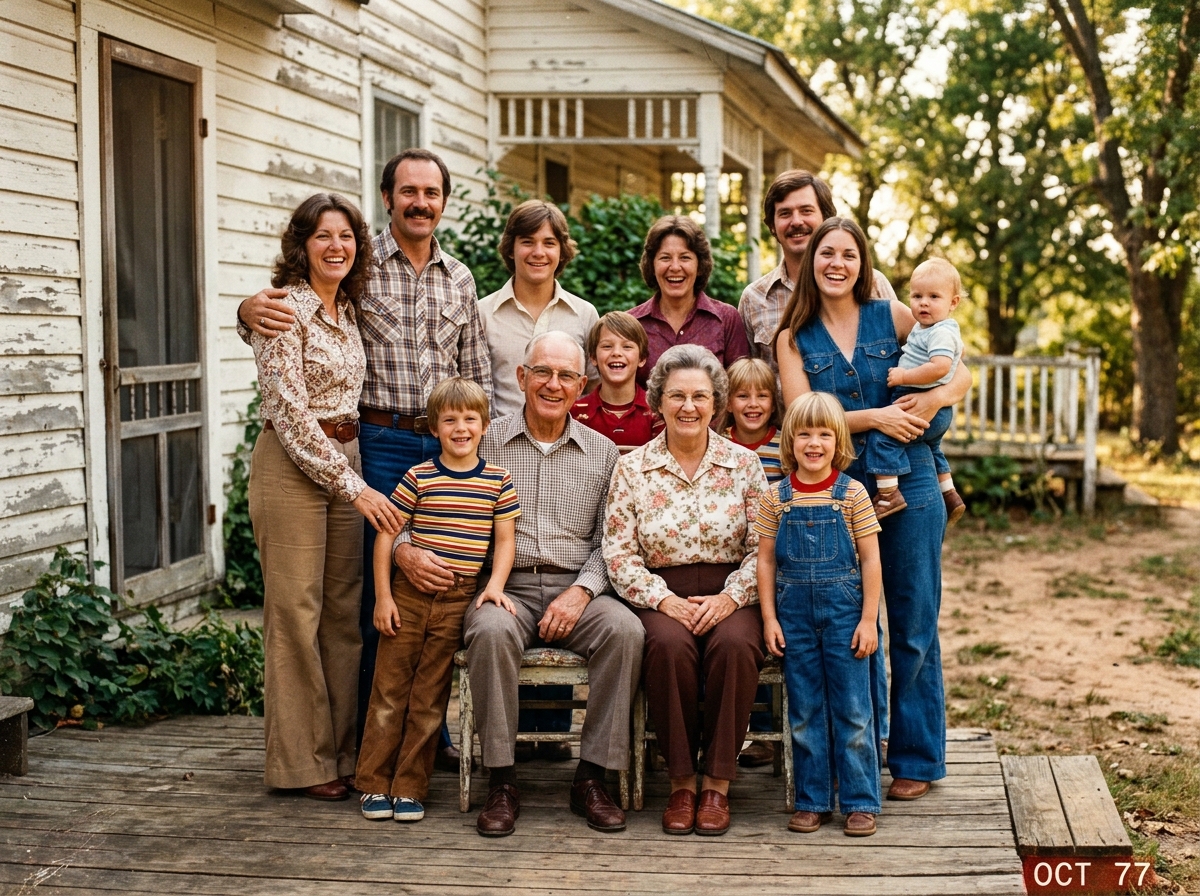
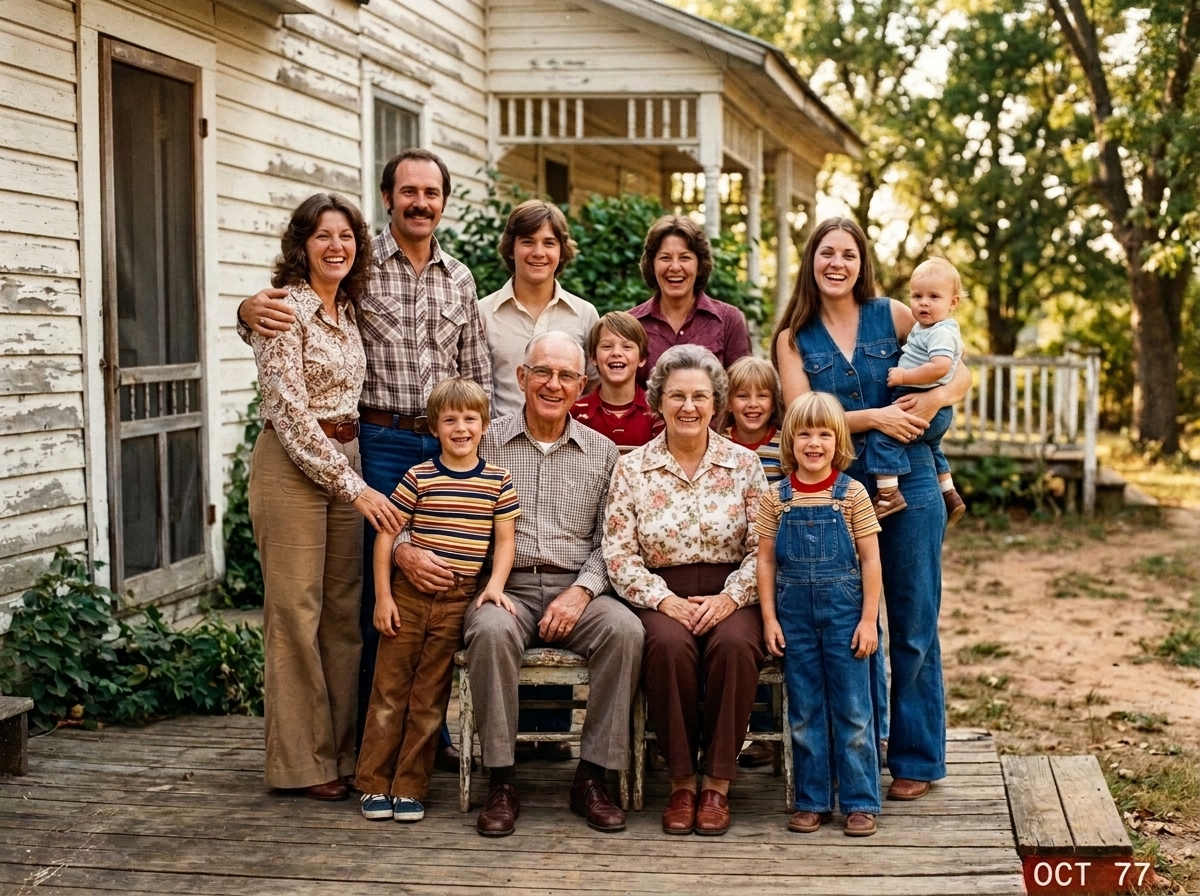
Work, travel, or distance shouldn't leave family members out of reunion group pictures. Upload their individual portrait and your porch snapshot—our AI integrates them seamlessly into the group shot.

Result photo with Place Grandparents on the Living Room Sofa with Great-GrandchildrenOriginal base photo before adding person for Place Grandparents on the Living Room Sofa with Great-Grandchildren
Original Base Photo
Loved One Added
Drag slider to compare
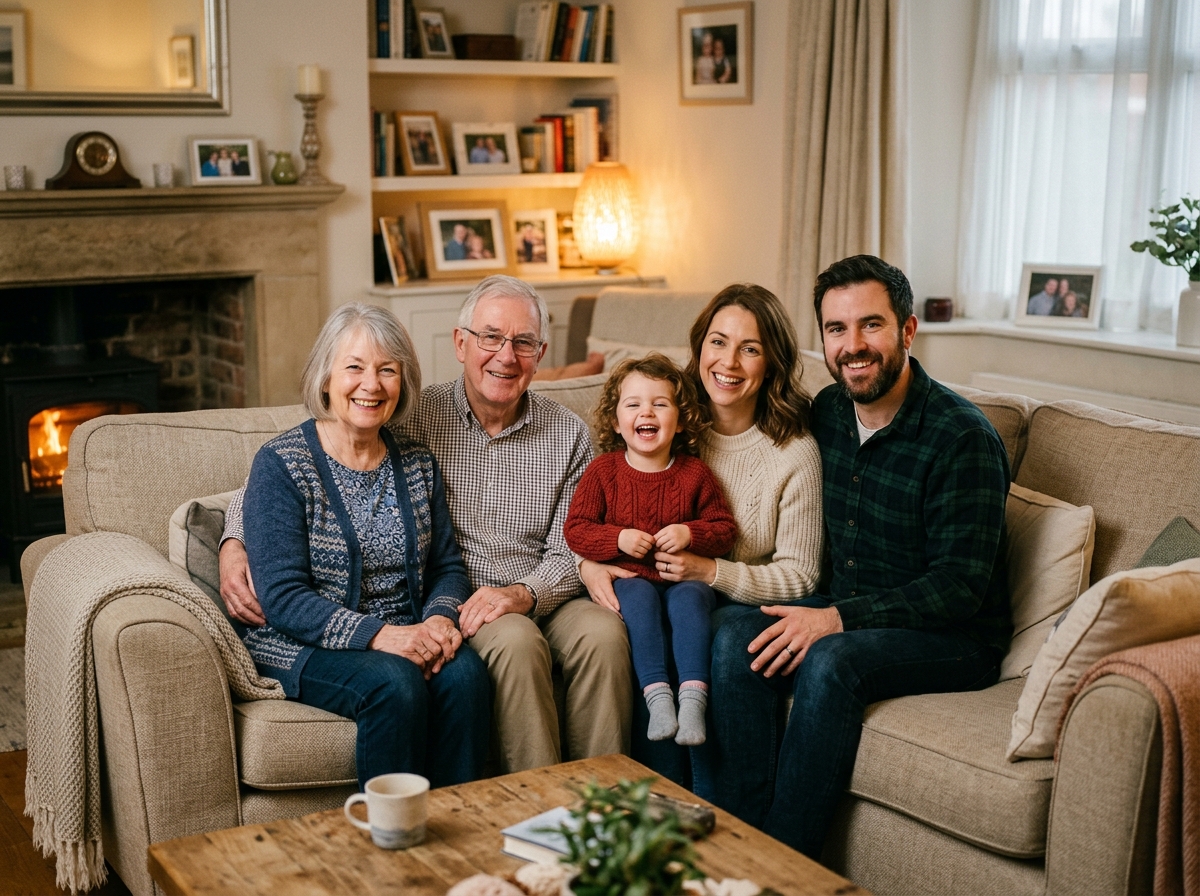
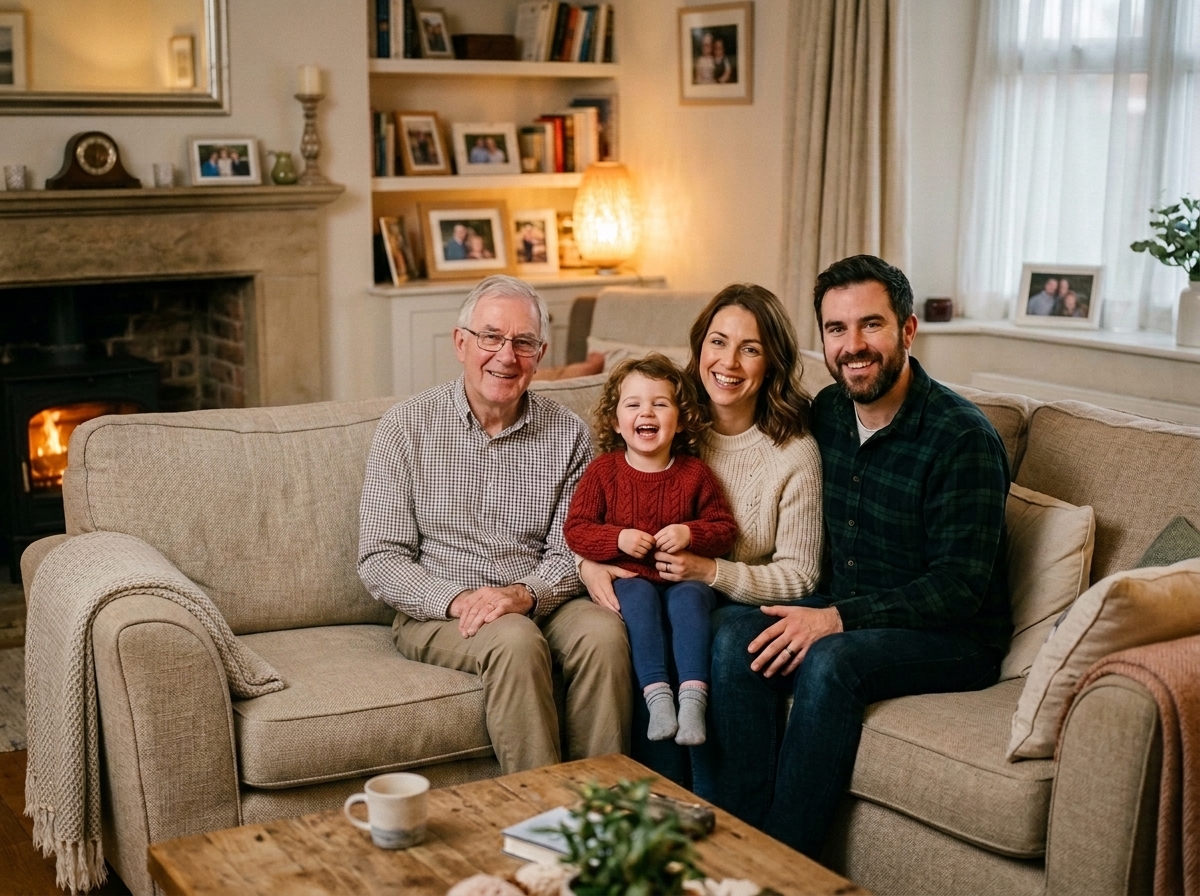
Generational Keepsake

Place Grandparents on the Living Room Sofa with Great-Grandchildren

Reunite multi-generational families in a warm indoor setting. Place a late grandparent on the sofa alongside new family members, matching soft lamp lighting, skin tones, and natural seated postures.

Result photo with Merge Loved Ones into Christmas & Holiday Family SnapshotsOriginal base photo before adding person for Merge Loved Ones into Christmas & Holiday Family Snapshots
Original Base Photo
Loved One Added
Drag slider to compare
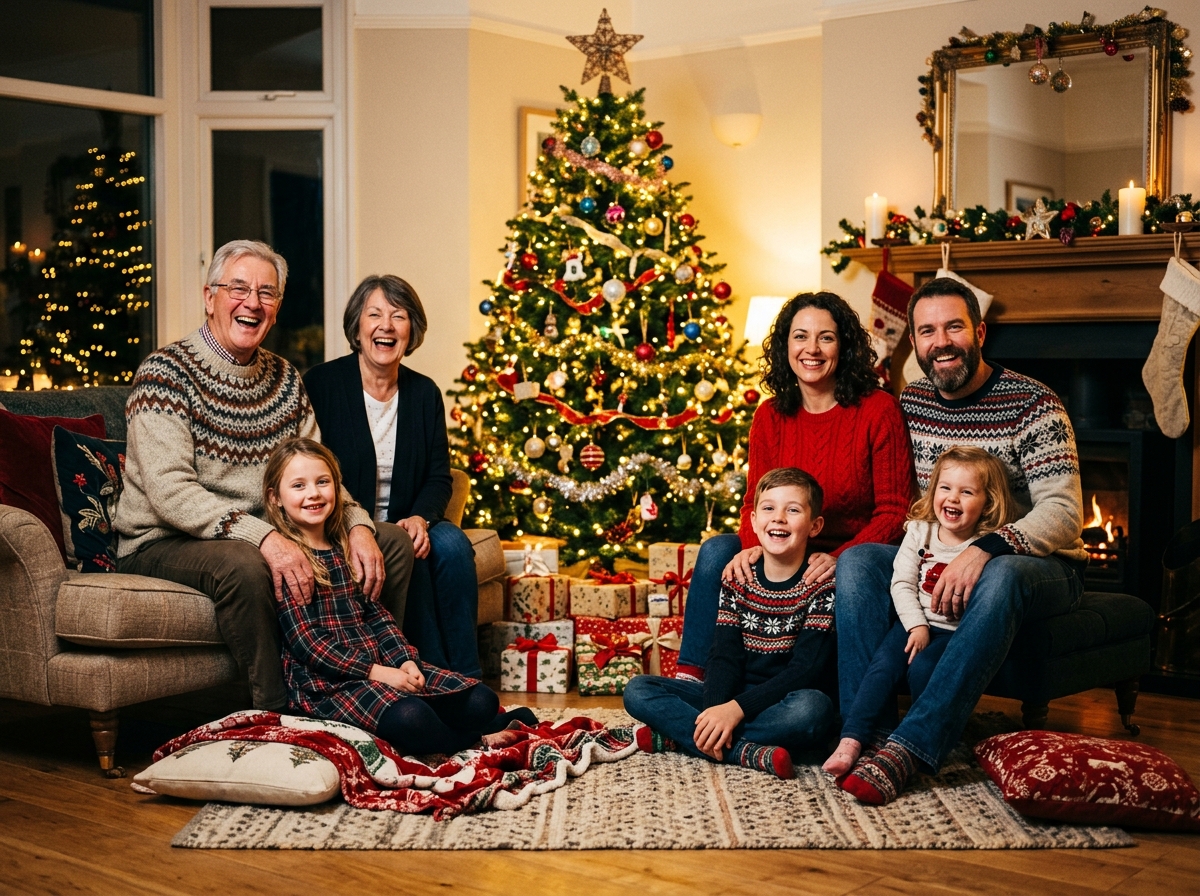
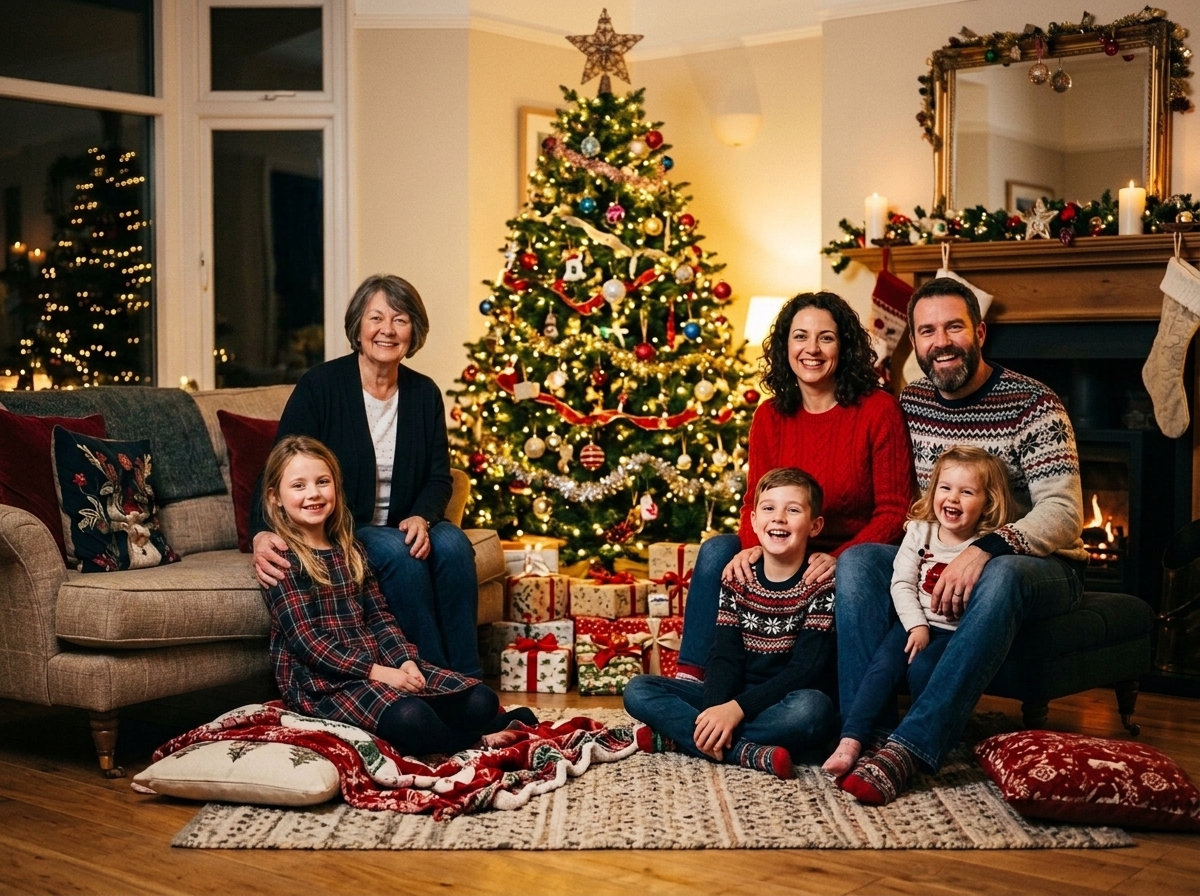
Holiday Snapshot

Merge Loved Ones into Christmas & Holiday Family Snapshots

Holidays are when missing family members are remembered most. BringBack seamlessly places loved ones into Christmas tree snapshots, harmonizing warm ambient holiday lighting.

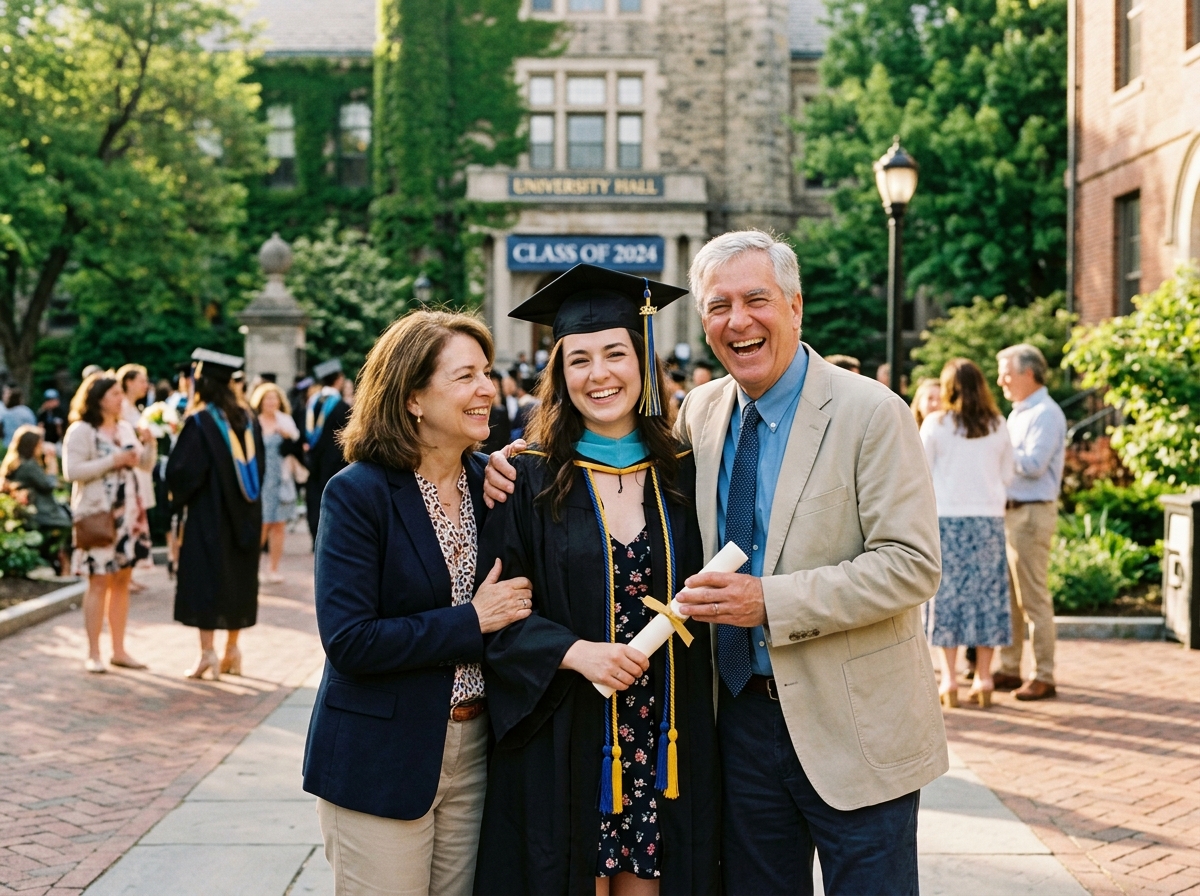
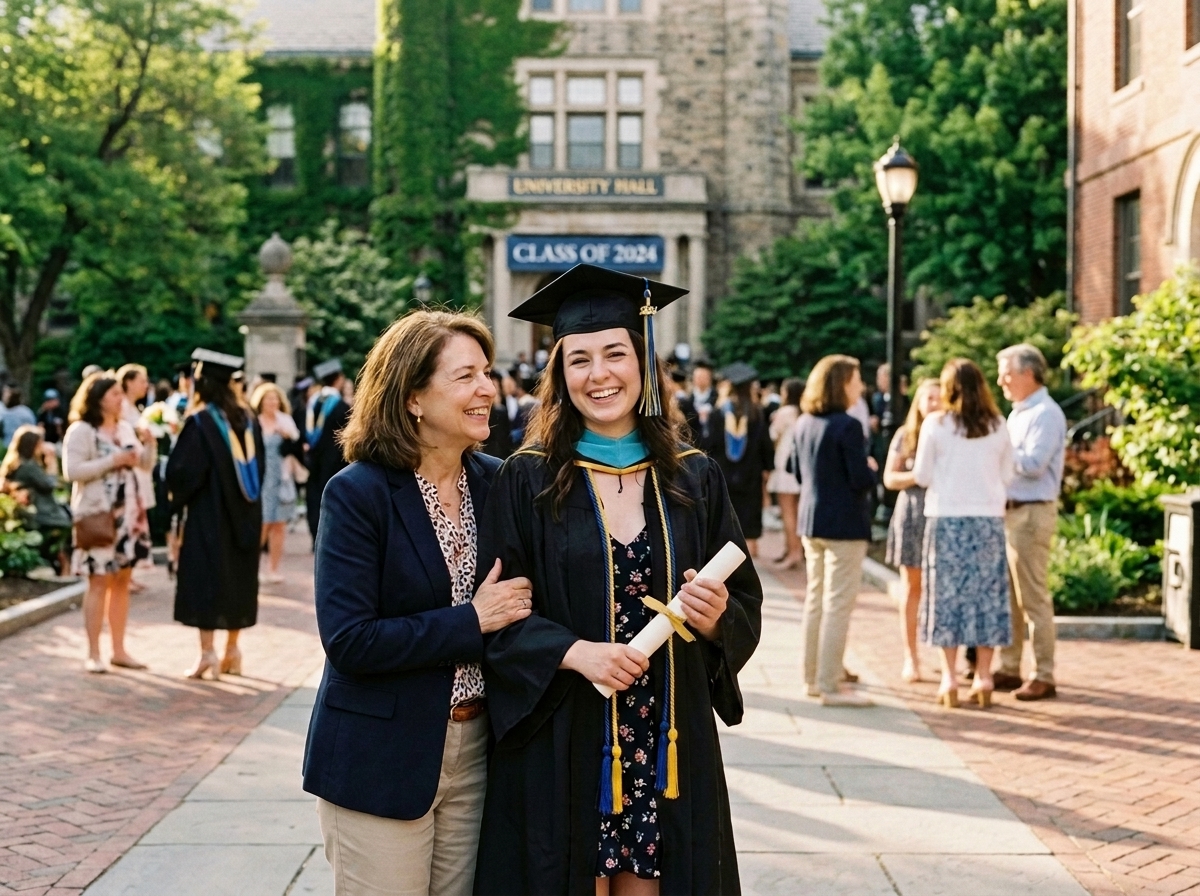
Result photo with Complete Graduation & Milestone Photos with Both Parents PresentOriginal base photo before adding person for Complete Graduation & Milestone Photos with Both Parents Present
Original Base Photo
Loved One Added
Drag slider to compare
Graduation & Milestone

Complete Graduation & Milestone Photos with Both Parents Present

Ensure major milestones like graduations feature both parents together. Our AI balances skin tones, clothing exposure, and shoulder angles automatically.

// 4 Simple Steps //

How to Add a Person to a
Family Photo with AI

Follow these 4 simple steps to merge a missing relative or deceased loved one into any group photo with natural AI lighting.

  1. 01

    Upload Your Group Photo

    Select the main family, wedding, or reunion snapshot where you want to add someone.

    High-resolution prints or digital photos work best. Our AI reads background geometry automatically.

    Step 01 Complete
  2. 02

    Upload the Person's Photo

    Choose a clear reference photo of the missing relative or deceased loved one.

    Old scanned portraits or smartphone photos are fine. Front-facing faces give the most natural result.

    Step 02 Complete
  3. 03

    Position & Adjust (Optional)

    Specify where they should stand or sit (e.g. next to the bride or on the living room sofa).

    Our AI scales height, body posture, and ground shadows to match surrounding family members.

    Step 03 Complete
  4. 04

    Download Your Family Memory

    Review the result side-by-side in your dashboard and download high-res print quality.

    Lighting, skin tones, and vintage film grain are color-matched automatically.

    Step 04 Complete
// Practical Family Photo Guide //

Two Easy Ways to Combine
Family Photo with AI

Each run costs 2 credits. Learn how to pick the best source photos for the most authentic result.

Option 1

Add a Person into an Existing Group Photo

Place a missing family member directly into an existing gathering shot (like a wedding, holiday dinner, or family reunion). The AI calculates height scaling and ground shadow placement automatically.

Keeps Original Room & Background Intact
Option 2

Create a New Family Photo from Separate Pictures

When you don't have a single group photo, upload separate individual studio portraits taken across different years. BringBack assembles them into one unified, balanced family portrait.

Blends Vintage Film Grain & Lighting

Best Source Photos to Upload

  • Clear, front-facing portrait of the person to add
  • Group photo with a natural gap or space
  • Similar lighting direction when possible
  • Original high-resolution scans over blurry screenshots

What Our AI Handles Automatically

Matches skin color tones and room light brightness across all faces in the group.

Equalizes photo grain so the added subject looks like they were shot with the exact same camera.

Quick Preparation Tips

  • If the source photo is damaged, restore it first
  • Avoid tiny low-res social media thumbnails
  • Make sure the face isn't hidden by hands or hats

Always review the side-by-side result in your private dashboard before downloading.

Respectful Family & Memorial Guidelines

Principles for creating meaningful family keepsakes

Family RespectEnsure surviving family members feel comfortable with memorial portraits.
Personal KeepsakesComposites are created for private family history books and frames.
Real Facial FeaturesAI preserves genuine expressions without synthetic face-swaps.
100% PrivateFiles are stored securely in your dashboard until you delete them.

Photos are processed securely for the feature you request. Generated files stay in your account until you delete them. Memory Book keepsakes are stored only when you explicitly save them. We do not use your family photos to train general-purpose AI models.

Explore Related Tools & Guides

Continue editing or discover specialized workflows

See Example Composites
// Looking Natural //

What we match when we
add someone to a photo

Cutouts look fake when light, color, or texture don’t match the rest of the picture. Adding a person well is less about the cutout and more about those details.

Light and shadows

If the room light comes from the left and the person you add is lit from the right, they look pasted on. We try to match the direction of light and ground shadows to the rest of the photo.

Color and skin tone

A warm old print next to a cool phone photo will never look like one moment. We adjust color so skin, clothes, and room light feel closer to the same place and time.

Grain and sharpness

Old film has grain. New photos are smooth. A sharp modern face on a soft vintage print is an easy giveaway. We soften and texture the added person so they sit closer to the original photo.

The face you know

We aim to keep the person’s real face from your reference photo—not a generic face swap. Height and posture still get adjusted so they fit the group. If the result still doesn’t look right, try a clearer face photo or run it again.

AI still guesses. Damaged, tiny, or side-facing reference photos are harder. Always compare the result to the original faces before you print or share.

// Compare Options //

How this compares
to other options

Side-by-side: BringBack, hiring a Photoshop editor, and free cutout apps—on quality, time, cost, and how much skill you need.

BringBack

Recommended
How natural it looksBlends into the photo
Light and shadowsMatched for you
Grain and textureCloser to the original print
How long it takesAbout a minute
Cost per editAbout $2.50 (2 credits)
Skill neededUpload and go
// Pricing //

Pay once.
No subscription.

Exact credit costs: restore 1, family portrait / add person 2, animation 10, hug video 19. Starter cannot fund animation or hug.

One-time payment

Restoration Starter

$4.99
Includes 4 Credits

Low-risk way to restore a few important photos. Not enough credits for animation or hug video.

Up to 4 photo restorations
OR up to 2 studio family portraits
OR up to 2 add/remove person edits
Does not include animation or hug video
Download high-resolution results
Credits never expire
30-day money-back guarantee
Most Popular

Value Pack

$9.99
Includes 20 Credits

Enough credits for restorations plus animation or family reunions.

Up to 20 photo restorations
OR up to 2 photo animations
OR up to 10 studio family portraits
OR up to 10 add/remove person edits
Download high-resolution results
Credits never expire
30-day money-back guarantee
Best Value

Family Pack

$21.99
Includes 60 Credits

For albums, multi-person projects, and the private Family Memory Book.

Up to 60 photo restorations
OR up to 6 photo animations
OR up to 30 studio family portraits
OR up to 30 add/remove person edits
Unlocks Family Memory Book editing
Download high-resolution results
Credits never expire
30-day money-back guarantee
// Common Questions //

Frequently Asked Questions

Everything you need to know about adding relatives to photos with AI.

Add Person uses 2 credits per successful run. Our Restoration Starter pack includes 4 credits, which covers up to 2 full add-person compositing runs.
// Premium Quality //

Ready to restore
your memories?

Every photo holds a story. Don't let damage steal your precious moments. Restore them forever in seconds.

Original
Restored
AI Processing