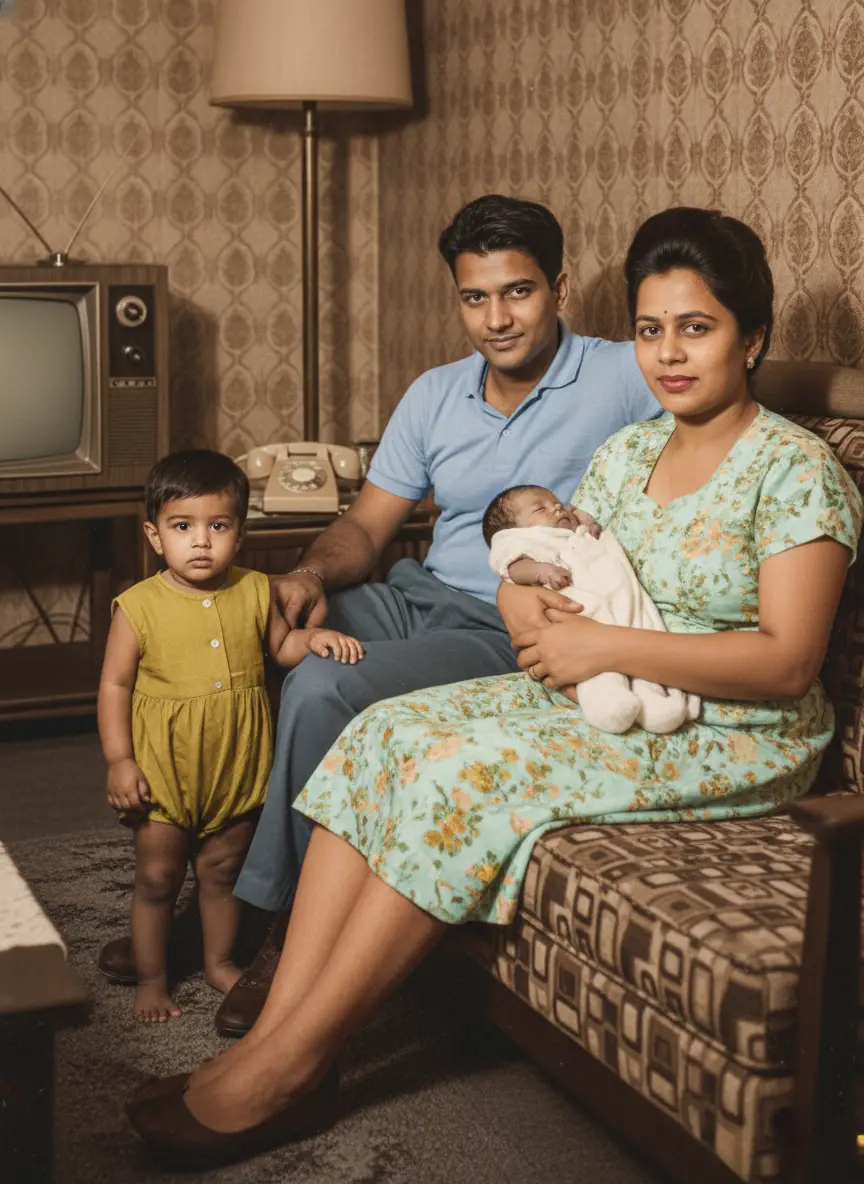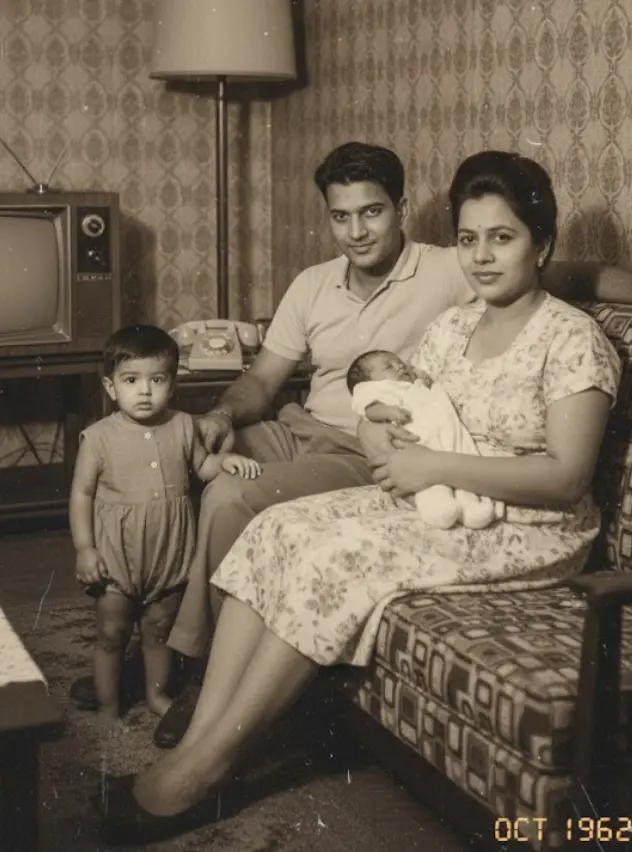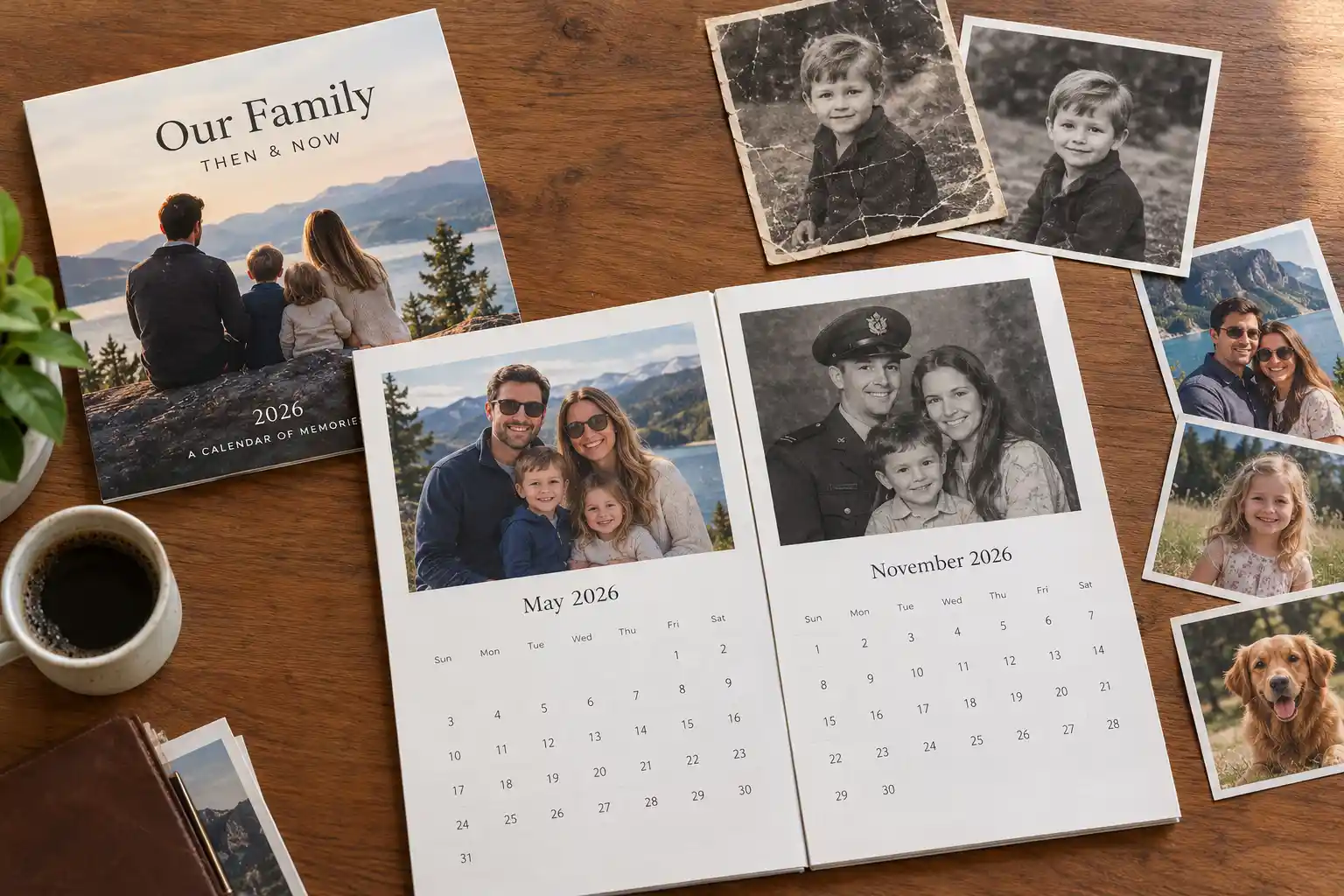
A good family photo calendar does more than display 12 favorite pictures. It tells a story across the year, preserves the details behind each photograph, and remains clear and attractive after cropping and printing.
That last part matters. A photograph that looks excellent on your phone can lose a face at the edge of a calendar template or print softly when enlarged.
This guide walks through the complete process: choosing a format, planning each month, preparing old and new photographs, writing captions, calculating print dimensions, and checking the finished calendar before you order.
The short version:
- Choose your calendar printer, format, and template first.
- Plan a cover and one main photo for each month, with a few alternates.
- Use original digital files and safely scan any printed photographs.
- Restore damaged images and review faces before designing the calendar.
- Add short captions and important family dates.
- Check pixel dimensions, cropping, bleed, and every 2027 calendar grid.
- Preview the entire calendar and allow time for a proof or correction.
1. Choose the calendar format before selecting photos
Different calendars need different photographs. A landscape picture that works beautifully on a wall calendar may be difficult to crop into a square desk-calendar template.
Choose the product and template before spending hours selecting images.
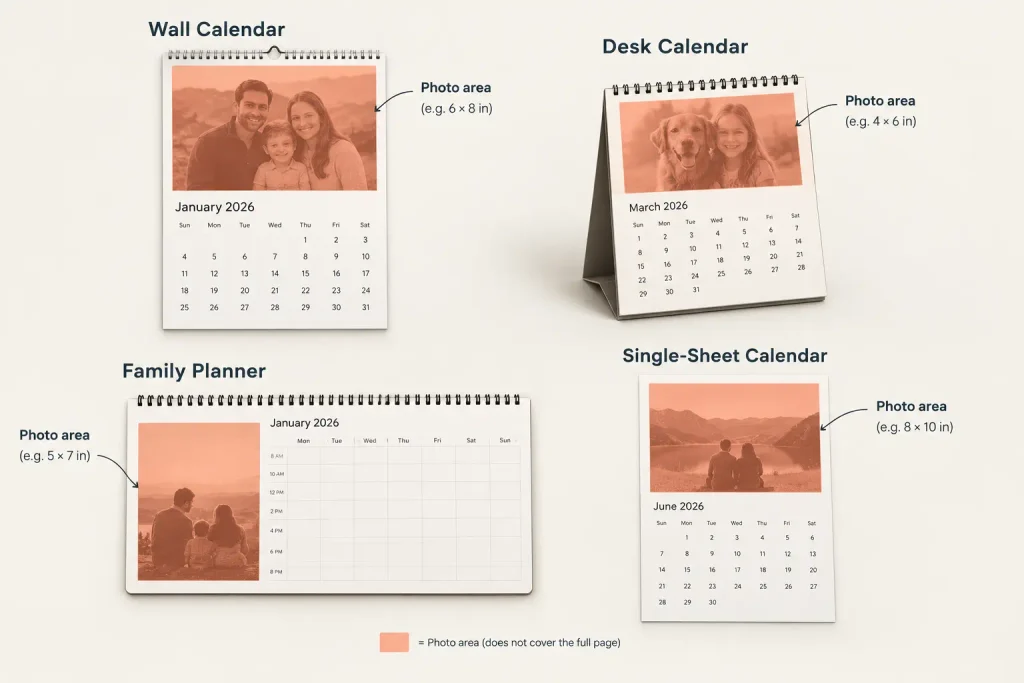
| Calendar type | Best for | What to check |
|---|---|---|
| Wall calendar | Family photographs, gifts, and kitchen displays | Photo orientation, binding position, writing space, and whether the photo can be removed and kept |
| Desk calendar | Small spaces and everyday date checking | Legibility at a smaller size, portrait versus landscape images, and stand stability |
| Family planner | Busy households with appointments and activities | Column layout, writing room, and whether photographs leave enough space for notes |
| Single-sheet year calendar | A visual overview of 2027 | Small date text, large-image resolution, and available wall space |
Once you have chosen a template, write down:
- The finished calendar size.
- The actual photo-area dimensions, which may be much smaller than the page.
- The required image orientation.
- The bleed and safe-area requirements.
- The printer’s accepted file types and resolution recommendations.
- Whether the calendar runs January–December 2027 or starts in another month.
Important: Do not calculate resolution from the full page size if your photograph will occupy only half that page. Use the dimensions of the image box itself.
2. Plan the calendar as a 12-part family story
Start with a simple structure: a cover, January through December, and two or three alternate photographs. Your template may require more images for collages or additional pages, so adjust the count to its actual layout.
A unifying idea makes selection easier. You might create:
- A year-in-review calendar using photographs from 2026.
- A family-history calendar moving through different decades.
- A grandchildren’s calendar showing growth and milestones.
- A then-and-now calendar pairing old photographs with recent recreations.
- A family-traditions calendar built around meals, celebrations, places, and recurring activities.
- A recipient-specific calendar featuring the people and moments most meaningful to one grandparent, parent, or sibling.
If you are making a year-in-review calendar, use the following planning table as a starting point. These are prompts, not rules—match the photographs to your family’s real year rather than forcing every month into a seasonal theme.
| Month | Photograph direction | Caption prompt |
|---|---|---|
| January | A new beginning, winter moment, new home, or first gathering of the year | “Our year began with…” |
| February | Everyday affection: siblings, partners, pets, or a quiet family routine | “The ordinary moment we never want to forget…” |
| March | A family-root photograph or an image of someone who shaped your story | “This is where our story…” |
| April | A first outdoor day, garden, walk, or small change in routine | “Finally, it was time to…” |
| May | A milestone, achievement, birthday, or new skill | “The day we celebrated…” |
| June | A wedding, anniversary, reunion, or photograph of a lasting partnership | “Still together after…” |
| July | Travel, a backyard afternoon, or the loudest family gathering | “Nobody remembers the schedule, but everyone remembers…” |
| August | A candid photograph that shows an everyday adventure | “We thought we were only…” |
| September | School, work, a new routine, or a new stage of life | “A new chapter started when…” |
| October | A tradition, favorite place, family recipe, or annual activity | “Every year, we return to…” |
| November | A reunion, multigenerational portrait, or photograph that prompts gratitude | “The people who made this year…” |
| December | A holiday photograph, reflective portrait, or favorite moment from the year | “We ended the year with…” |
For a family-history calendar, replace the seasonal sequence with decades, households, or branches of the family. The goal is a coherent page-turning experience, not a random assortment of good pictures.
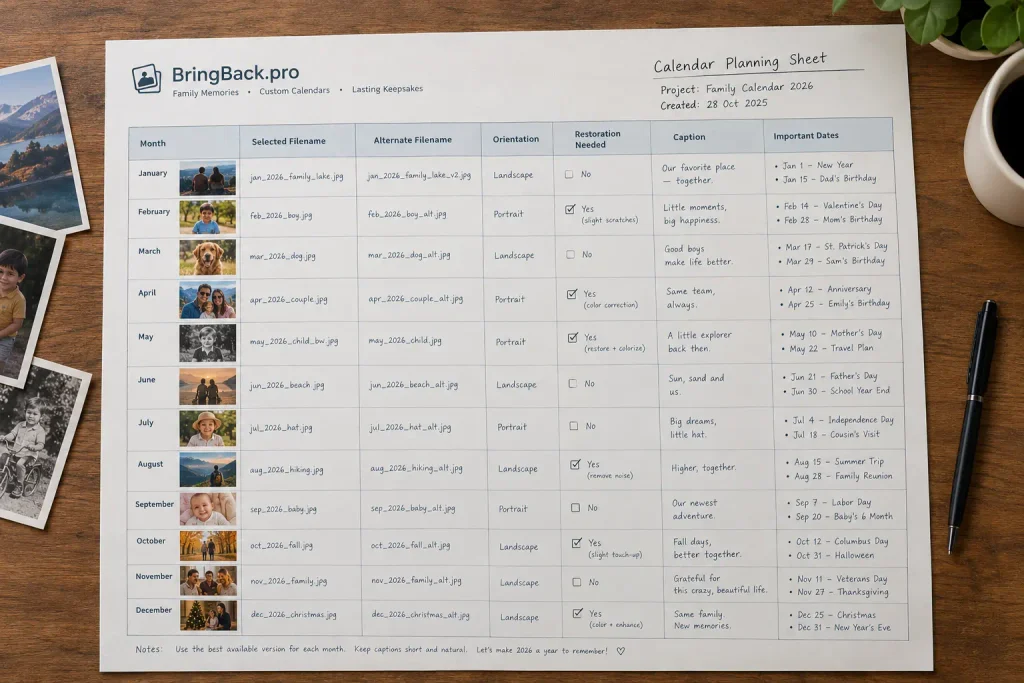
3. Select photographs for printing, not just for emotional value
The most meaningful photograph is not automatically the easiest to print. Evaluate each candidate using five checks.
Meaning
Would someone stop turning pages to look at this image or ask about its story? A candid photograph with genuine interaction often adds more than another posed picture with everyone looking at the camera.
Face size
View the photograph at approximately its intended printed size. If a face becomes a handful of pixels in a large group, use a tighter crop, place the image in a smaller frame, or choose another photograph.
Orientation and cropping room
Check whether the important people and objects can fit the template without cutting off heads, hands, or pets. Leave room around the group for trimming and layout changes.
Source quality
Use the original phone or camera file whenever possible. Screenshots, messaging-app downloads, and images saved from social media may have been resized or compressed.
Do not confuse a large file size with genuine detail. A blurry image saved as a large JPEG is still blurry.
Variety across the calendar
Mix close-ups, wider scenes, individuals, couples, groups, and meaningful objects. A calendar made entirely from similar group poses can feel repetitive even when every photograph is good.
A practical selection system is to create three folders:
- Calendar: selected images.
- Repair: meaningful images that need restoration or better digitization.
- Alternates: strong backups for awkward crops or weak print quality.
4. Digitize and restore old photographs carefully
Old photographs can make a calendar feel like a family archive rather than a summary of the past year. They also require a little more preparation.
Start with a clean, undamaged digital copy
For small printed photographs, 600 DPI is often a practical scanning starting point, especially if the image may be enlarged. The right setting depends on the original dimensions and intended print size.
Keep the scanner glass clean, align the print carefully, and scan the entire photograph before cropping. If you use a phone instead, work with soft, even light, avoid glare, and hold the camera parallel to the print.
Our guide to scanning family photos safely covers the physical handling in more detail.
Always preserve an untouched master scan. Perform restoration, cropping, and color adjustments on copies so you can return to the original later.
Restore damage, but review the result as a family record
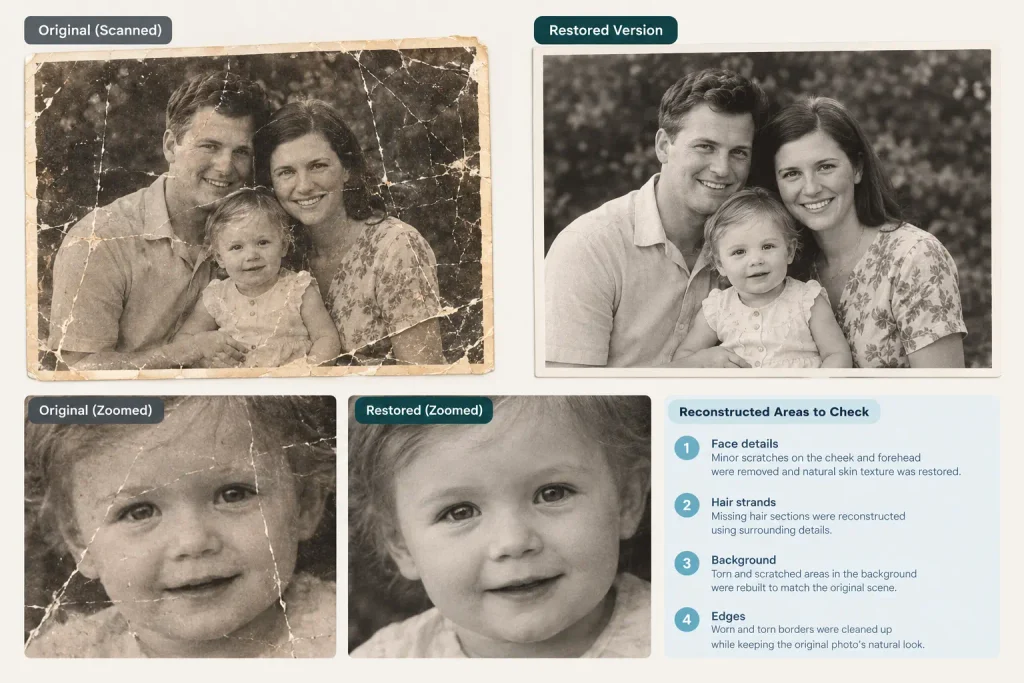
Scratches, stains, fading, and small tears may be good candidates for AI old photo restoration. Restore-only is appropriate when you want to retain the original black-and-white or sepia appearance; restoration with colorization is an optional creative treatment, not a requirement.
After restoration, compare the result with the source at full size. Pay particular attention to:
- Eyes, teeth, and facial contours.
- Hands and fingers.
- Jewelry, buttons, and patterned clothing.
- Text written on the photograph or in the background.
- Areas where the original detail was obscured.
AI may generate plausible replacement detail where information is missing. That is not the same as recovering the exact detail that was originally photographed.
If the source is simply out of focus, increasing its scan resolution will not recover sharpness. As our guide to why scanning at 1200 DPI will not save a blurry photo explains, more pixels do not automatically create more real detail.
You also do not need to colorize every old image. A mixture of black-and-white, sepia, and color photographs can look deliberate when the calendar layout itself is consistent.
5. Write captions that preserve the story
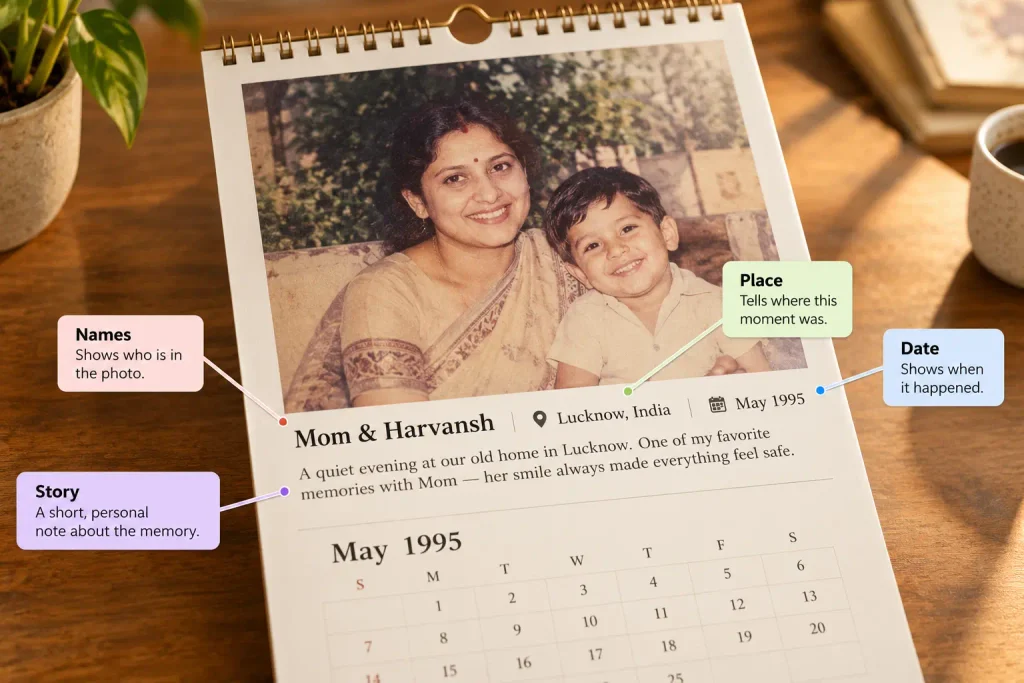
A useful caption answers the questions a future reader is most likely to ask:
Who is in the photograph, where was it taken, when was it taken, and what is worth remembering?
You do not need to fit a full story beneath every image. One or two specific lines are usually more effective than a generic quotation.
Compare these examples:
Generic:
“Making memories with the people we love.”
Specific:
“Maya and Daniel building their first snowman in Grandma’s garden, January 2026.”
Generic:
“Our family through the years.”
Specific:
“Dad with his first home-grown tomatoes, Leeds, summer 1978. He brought a basket indoors for everyone to inspect.”
Useful caption formulas include:
- [Names] + [place] + [date]: “Elena and Ruth, Brighton, August 2026.”
- [Event] + [small detail]: “The first picnic at the new house—before any furniture arrived.”
- [Relationship] + [milestone]: “Four generations together at Aunt Rosa’s 80th birthday.”
- [Then-and-now explanation]: “The same porch, 38 years later—and the dog still refused to sit still.”
- [Family saying or memory]: “Dad called this ‘the shortcut.’ We were lost for two hours.”
If a date or identity is uncertain, do not present a guess as a fact. Use “approximately,” “circa,” or “unverified,” and ask relatives before printing. Our family photo metadata checklist can help you preserve those details separately.
Remember the difference between the two types of dates in a calendar:
- Captions describe when the photograph was taken.
- Calendar events mark 2027 birthdays, anniversaries, reunions, and reminders.
6. Calculate the pixel size you actually need
Print resolution is usually discussed in PPI, or pixels per inch. It describes how many image pixels are available for each inch of printed output.
The basic calculation is:
Required pixel width = printed image width in inches × target PPI
To check an existing image:
Effective PPI = image pixel width ÷ printed image width in inches
For example, a photograph that is 2,400 pixels wide provides:
- 300 PPI when printed 8 inches wide.
- 240 PPI when printed 10 inches wide.
- 200 PPI when printed 12 inches wide.
This is why an image can be suitable for a desk calendar but insufficient for a much larger wall-calendar print.
A 300-PPI target is commonly used for close-viewed printing, but your printer’s specification takes priority. Some products and labs accept lower effective resolution; larger items viewed from farther away may have different requirements.
| Printed image size | Pixels at 300 PPI | Pixels at 240 PPI |
|---|---|---|
| 4 × 6 inches | 1200 × 1800 | 960 × 1440 |
| 5 × 7 inches | 1500 × 2100 | 1200 × 1680 |
| 8 × 8 inches | 2400 × 2400 | 1920 × 1920 |
| 8 × 10 inches | 2400 × 3000 | 1920 × 2400 |
| 8.5 × 11 inches | 2550 × 3300 | 2040 × 2640 |
| 12 × 12 inches | 3600 × 3600 | 2880 × 2880 |
Reverse the dimensions for landscape orientation.
These figures describe the photograph’s printed area, not automatically the entire calendar page. If your printer requires bleed, use its expanded template dimensions rather than adding an arbitrary margin yourself.
Finally, do not assume that resizing a small image to the listed dimensions solves the problem. That may increase the pixel count without increasing genuine detail. Restoration can improve damage, but neither resizing nor restoration can guarantee recovery of an out-of-focus face.
7. Design for trimming, binding, and everyday use
A calendar is handled, written on, and viewed from a distance. Its design needs to work beyond a computer screen.
Keep important content inside the safe area
Do not place faces, captions, or important dates against the trim line. Check the top and side binding areas as well; a hole, wire, or spiral can interfere with content even when the template otherwise looks attractive.
Let the photograph determine the crop
Avoid stretching an image to fit. Crop deliberately, and reconsider the template if the only way to make a photograph fit is to remove someone important.
Make dates easy to read
Use sufficient contrast between the calendar grid and its background. Decorative type can work for a month name, but the dates and event labels should be simpler.
Leave space for writing
If the recipient will record appointments, check that the date boxes are useful and that the paper is suitable for writing. Do not choose a design solely because the photographs look good in the preview.
Use decorative elements with restraint
Frames, stickers, quotations, and backgrounds can support a theme, but they should not compete with faces or reduce the size of the date grid. One consistent visual system usually works better than a different style on every page.
Personalize important dates
Add birthdays, anniversaries, family reunions, and other recurring events. Verify every entry against 2027 rather than copying dates automatically from an older calendar, and check that the selected national or regional holidays are appropriate for the recipient.
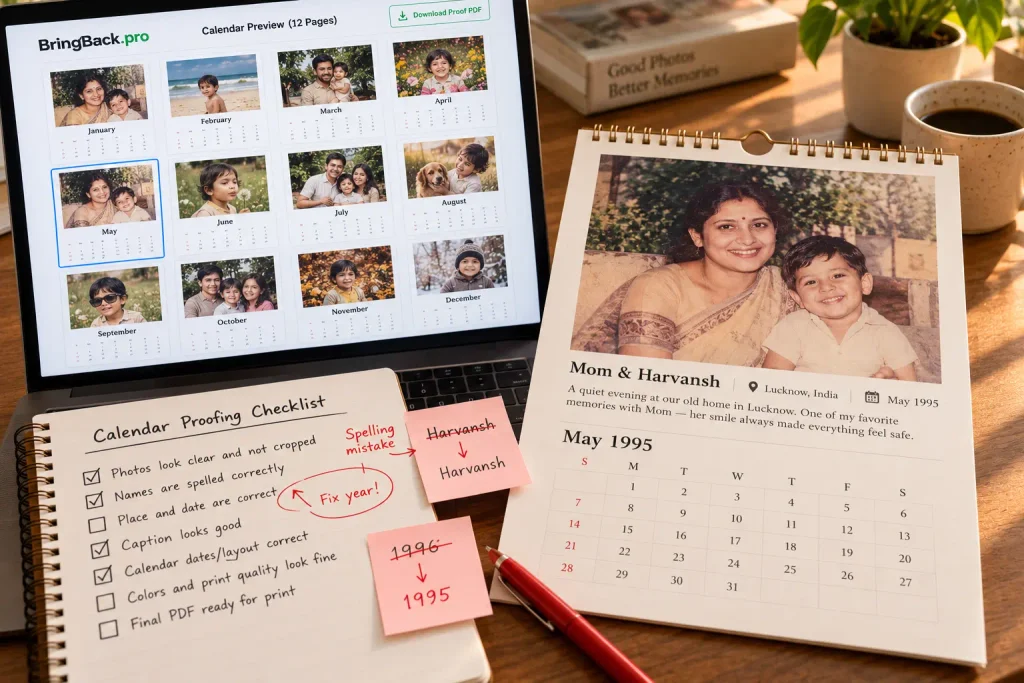
8. Proof the entire calendar before ordering
Do not stop after checking the cover and a few favorite photographs. Review every page systematically.
Photograph checks
- Every selected image is the intended version.
- No near-duplicate or incorrect photograph slipped into the project.
- Faces, hands, and pets are not awkwardly cropped.
- Images remain clear at their expected printed size.
- Restored faces and reconstructed areas have been compared with the originals.
- Colorization choices are intentional and consistent with the project.
Caption and date checks
- Names are spelled correctly.
- Photograph dates are not confused with 2027 event dates.
- Approximate or unverified historical details are labeled honestly.
- Birthdays and anniversaries appear on the correct 2027 dates.
- The cover and every grid show the intended year.
- All 12 months appear in the correct order.
Print checks
- Each image meets the printer’s requirement for its actual photo area.
- Important content stays inside the safe area.
- Bleed and binding settings follow the template.
- File format, export settings, and color profile follow the printer’s instructions.
- Captions and calendar numbers remain readable at final size.
- The delivery schedule leaves time to correct a mistake or replace a damaged copy.
If possible, order or create a proof before producing several gifts. Even printing one representative page at home can reveal a caption or crop that looked fine on screen, although a home print will not reliably reproduce the final color or paper.
Frequently asked questions
How many photos do I need for a family calendar?
A common monthly calendar uses 13 main images: one cover photograph and one for each month. Templates with collages, extra pages, or different starting months may require more, so confirm the layout before making your final selection.
Can I combine old scanned photographs with recent phone photos?
Yes. Keep the layout consistent and allow the photographs to retain some of their original character. Converting every image to the same heavy filter or color treatment is not necessary for a coherent calendar.
What should I do if a favorite photo has too little resolution?
First try a smaller photo box or a collage position instead of printing it full-page. Otherwise, request the original file, look for a better copy, or choose an alternate. Restoration may improve certain kinds of damage, but it cannot guarantee genuine detail from a blurry or tiny source.
Should I colorize black-and-white photographs for a calendar?
Only when color serves your project. Black-and-white and sepia images can work well alongside modern photographs. If you colorize, preserve the original scan and review the result as an interpretation rather than a historically verified record.
Can I make different calendar versions for different relatives?
Yes, and this is often easier than designing unrelated gifts from scratch. Keep the basic template, then replace selected photographs and family dates for each recipient. Check every version separately so a personal caption or event does not end up in the wrong copy.
What is the best size for a family photo calendar?
The best size depends on where it will be displayed and how it will be used. Choose a smaller format for a desk, a larger date grid for a busy family planner, and a suitable wall size for a photographic gift. Select the format before evaluating image resolution or crops.
Start with 12 photographs and the stories behind them
A family calendar does not need hundreds of images or an elaborate theme. Start with one meaningful photograph for each month, add the details that future readers should know, and make sure each image survives the practical steps of cropping and printing.
If an important photograph is faded, scratched, or stained, begin with a clean scan and restore the photo with BringBack. Compare the restored version with the original before adding it to your calendar, then download the file you have reviewed for your print template.
The result is more than a way to track 2027. It becomes a small family archive that someone can live with—and turn to—throughout the year.