To restore your precious memories from digital corruption, you must first confirm the damage type and then use specialized online tools for corrupted image repair online. This precise approach ensures effective recovery. This process often takes mere minutes and requires basic computer literacy.
What You Need:
- The corrupted image file(s).
- A stable internet connection.
- (Optional but useful) Another healthy photo from the same device to use as a reference.
You might have just found a dusty hard drive, full of old memories. But instead of vibrant pictures, you see garbled files, error messages, or blank thumbnails. This isn't physical damage like a torn print; it's digital corruption, a common gut punch for anyone hoping to restore old photos. Many feel a deep sense of loss when facing these broken files.
By the end of this guide, you will have a clear path to fix damaged photos through a streamlined digital image repair triage, ready for you to relive and share those unforgettable moments.
Diagnosing Your Damaged Photos: Digital Corruption or Physical Wear?
Old memories can feel broken when the pictures we cherish turn into garbled files or display error messages. This often isn't physical damage like a torn print, but digital corruption, a common gut punch when trying to restore old photos. Many feel a deep sense of loss facing these broken files.
By the end of this guide, you will have a clear path to fix damaged photos through a streamlined digital image repair triage, ready for you to relive and share those unforgettable moments.
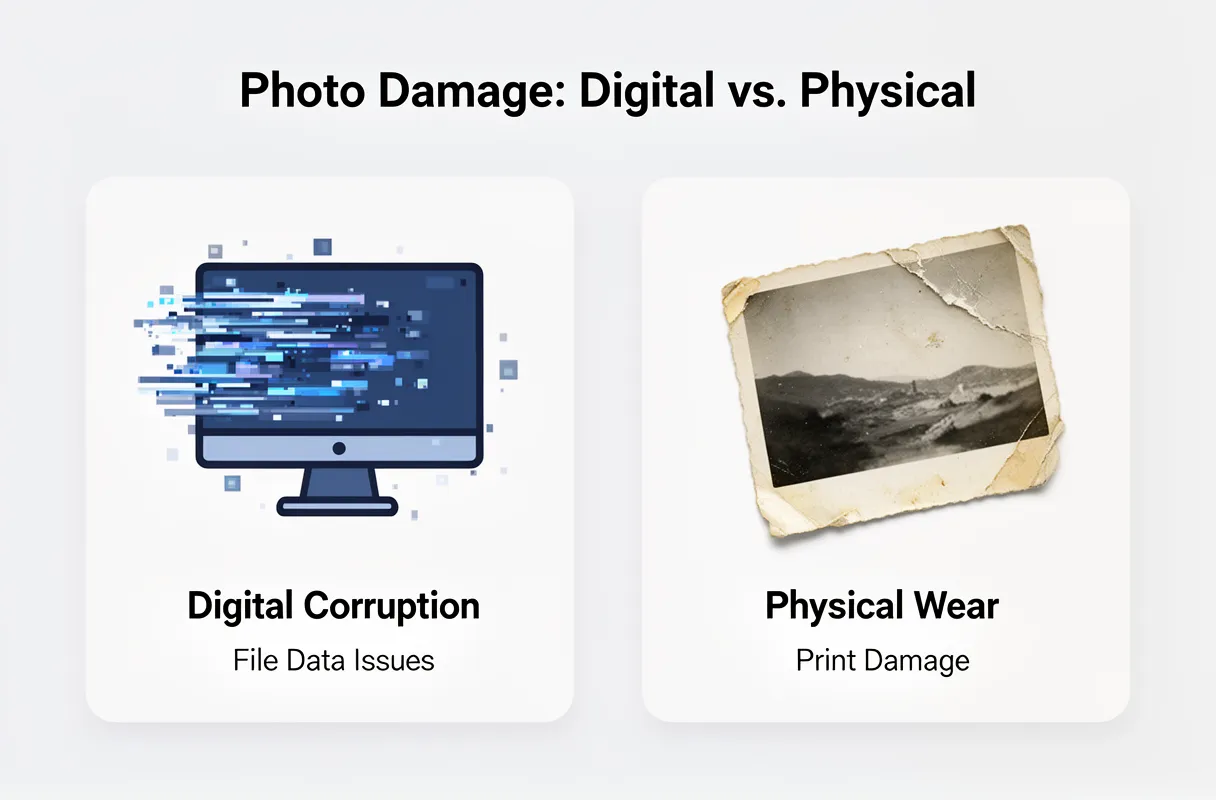
The first step to saving your precious images is identifying whether the problem lies with the digital file itself or the physical print. Digital corruption means the file's data is scrambled, while physical wear refers to damage on the actual photo paper.
Digital Corruption vs. Physical Damage: What's the Difference?
-
Digital Corruption:
- Causes: Often stems from file transfer failures, power interruptions during saving, virus attacks, or incomplete downloads.
- Errors: You might see unsupported file types, problematic filenames (using special characters or exceeding length limits), or files too large for a specific platform. The image file itself is unreadable by software.
- Symptoms: Garbled pixels, incorrect colors, blank images, or complete inability to open the file.
Physical Damage:
- Causes: This is damage to the printed photograph itself.
- Symptoms: Visible issues like creases, tears, fading colors, scratches, or water stains on the print.
- Repair Path: If your photos suffer from physical damage, such as creases, tears, or fading, specialized tools exist for physical photo restoration, offering distinct solutions from digital file repair.
Understanding whether you're dealing with digital photo corruption or physical photo damage is key. Identifying the type of issue will guide you toward the right steps to restore old photos and ensure you choose the most effective methods for recovery.
Essential Steps for Repairing Corrupted Digital Images Online
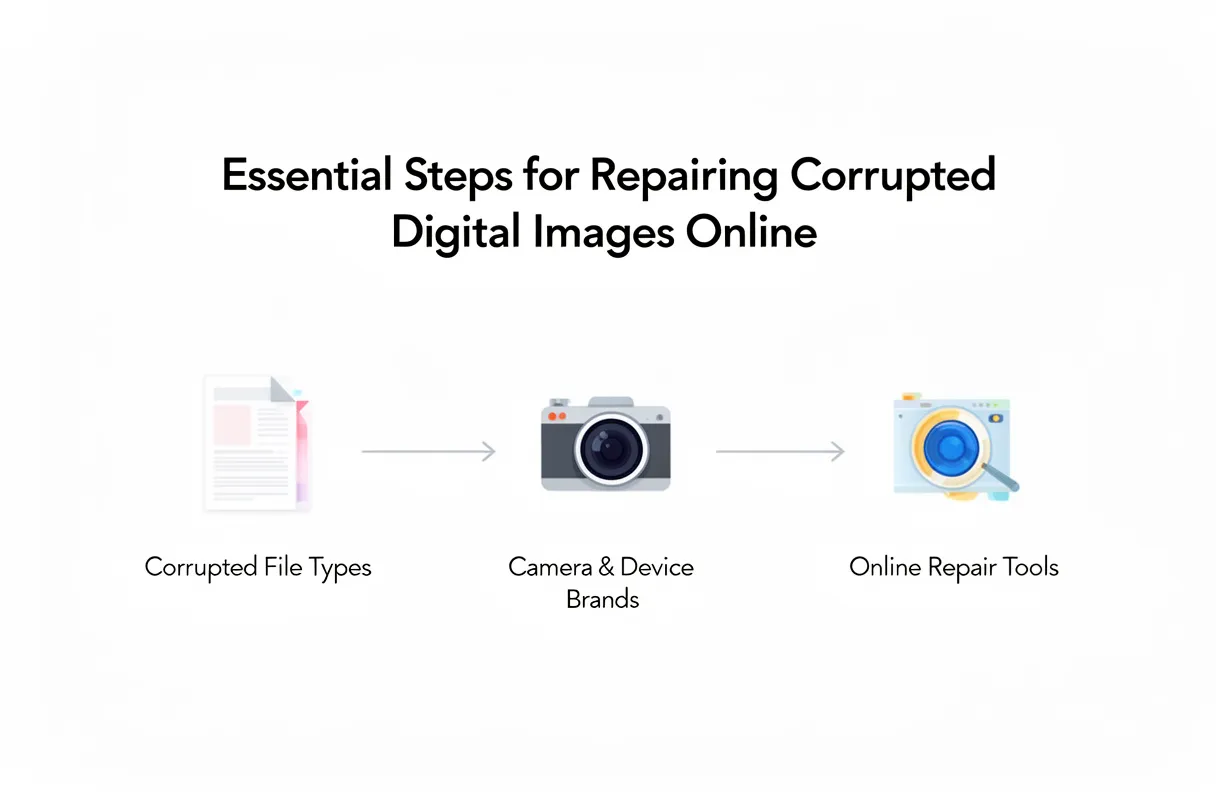
Here are the essential steps for fixing your corrupted digital images online:
- Prepare Your Image File: Before uploading, create a local copy of your damaged photo. Rename the file to use only alphanumeric characters to prevent upload errors. This simple step ensures smoother processing by online tools.
- Select a Reputable Online Repair Service: Choose a service known for its effectiveness in handling digital corruption. Look for platforms that can process a variety of file types and camera brands, such as those specializing in corrupted image repair online for JPEGs, RAW files, and more.
- Upload and Initiate Repair: Upload your prepared image to the chosen online tool. The AI will then analyze the file's structure to identify and repair damage.
- Review and Preview the Results: Once the repair is complete, a preview will usually be provided. Check for restored clarity, accurate colors, and the absence of artifacts or distortion.
- Download Your Restored Photo: If you're satisfied with the preview, proceed to download the repaired image. Save it to a secure location immediately.
How to Fix Corrupted Images Using Online Tools
When your precious memories are locked away in a damaged file, the thought of losing them can be disheartening. Fortunately, a straightforward path exists to recover these digital treasures. Online photo repair steps are designed to be accessible, even if you’re not a tech expert.
The primary function of services like JPG.Repair is to address digitally broken files. This includes everything from unreadable JPEGs to corrupted RAW files from your professional camera or even your phone. They specifically target issues that render your image unopenable, a problem often stemming from incomplete transfers or storage media errors.
Uploading Your Damaged File
Your journey begins with preparing the file. Make a copy of the corrupted image and rename it to avoid any special characters that might cause issues. Then, you'll simply Click Upload on your chosen platform. Most tools can handle a wide array of file types and brands, including Canon, Nikon, Sony, Panasonic, GoPro, iPhone, Dashcam, Android, and Drones. This broad compatibility means your specific photo is likely supported.
The AI-Powered Repair Process
Once uploaded, the AI gets to work. It scans the digital footprint of your image, identifying what's broken – often a corrupted header or damaged data blocks. The system then works to reconstruct these elements, attempting to rebuild the image from the available data. This is the core of corrupted image repair online; it's a sophisticated process made simple for the end-user.
Previewing and Securing Your Memory
After the AI has done its work, you'll be presented with a preview. This is your chance to see the magic happen. You can examine the restored clarity, check if the colors have been accurately brought back, and ensure that strange artifacts are no longer present. This step is vital to how to fix corrupted images successfully before you commit to downloading.
Preparing Your Files and Choosing the Right Service
Before you can begin restoring your precious memories, image file preparation is crucial. Start by copying your damaged photo to a local drive. Then, rename the file to include only alphanumeric characters (letters and numbers). Avoid spaces, special symbols, or excessive length, as these can cause upload errors. This simple step significantly improves your chances of a successful repair.
Many online tools restore a corrupted image by replacing its damaged JPEG header with a healthy one. If your chosen service requires you to provide a healthy JPEG header, try to find another photo taken with the same camera and identical settings. This duplicate can often provide a suitable, clean header. For a deeper understanding of JPEG header corruption and various repair approaches, refer to this comprehensive guide. If the original device isn't available, some platforms offer generic headers.
We understand that online repair privacy is a top concern. Reputable services ensure your uploaded images are typically not saved after the repair process and are permanently deleted. This safeguards your personal data and cherished memories. Before selecting a tool, it's wise to research tool reviews to check their success rates and data handling policies. Choosing the right repair tool is key, and for a broader look at how AI is revolutionizing image restoration, explore ai photo restoration online.
A Pro Tip: Always ensure you have a stable and strong internet connection before initiating an upload. This prevents interruptions that could corrupt the file further. If your chosen repair service requires it, here's how users can obtain or identify a 'healthy JPEG header'.
Uploading, Repairing, and Downloading Your Restored Image
You've prepped your precious memories and selected the right tool. Now, let's bring them back to life.
Uploading Your Corrupted Image
Start by uploading your corrupted image file to the chosen online repair tool. Many services, like JPG.Repair, are designed to handle files from Canon, Nikon, Sony, GoPro, iPhones, and more. Simply drag and drop your file or use the Click Upload button. The AI will then scan and analyze the image's internal structure, identifying the specific areas of corruption.
Reviewing the Repair Preview
Once the initial scan is complete, you'll typically see a repair preview. This is where you review the repair preview. Look closely for restored clarity, accurate colors, and the absence of visual artifacts. This step is critical for ensuring the service has accurately fixed the damage.
Understanding Online Photo Repair Cost and Time
The online photo repair cost is usually based on repair units. For example, JPG.Repair charges $5 per unit plus VAT, with a minimum purchase of 4 units ($20). The image repair time varies. Simple corruption might take seconds to minutes, while complex cases, especially those requiring manual review via a 'custom recovery service' (often included at no extra cost by professional platforms), could extend to an hour or more.
Downloading Your Repaired Image
After you're satisfied with the preview, proceed to download the fully repaired image. Ensure you save it to a safe location immediately. This is the magical moment your cherished memories are restored and ready to be shared or preserved for generations.
Pro Tip: Always save multiple copies of your restored image to different devices or cloud storage to prevent future loss.
Troubleshooting Online Repair Failures and Advanced Solutions
Encountering issues with online photo repair can be frustrating, but most problems have straightforward fixes.
- Common Errors: Upload fails (rename file), processing errors (try again later), or poor results (check header, try another service).
- Advanced Fixes: If online tools fall short, desktop software or professional services offer deeper recovery.
Troubleshooting Common Online Repair Errors
Even with the best intentions, online repair processes can sometimes hit snags. Understanding these common roadblocks and their quick fixes can save you time and frustration.
| Error Message | Likely Cause | Immediate Solution |
|---|---|---|
| Upload Failed | Filename contains unsupported characters; file size exceeds limits. | Rename file to use only alphanumeric characters. Compress the image if it's too large. |
| Processing Error | Temporary server issue; incompatible image structure. | Wait a few minutes and try the upload again. If persistent, the corruption might be too severe for the automated tool. |
| Preview Not Showing | Significant header corruption; image data is largely unreadable. | The tool may not be able to generate a preview. Proceed to repair and check the final download. |
| Poor Repair Quality | Corrupted header doesn't match available healthy ones; severe data loss. | Try a different online repair service or use a known good header from an identical shot if possible. |
| Unsupported Format | Uploaded file is not a standard JPEG or common image format. | Convert your image to JPEG or PNG using basic photo editing software before uploading. |
It's rare, but sometimes the corruption is simply too deep for automated online tools to fix. This often happens when critical parts of the image data have been overwritten.
When Online Tools Reach Their Limit
Online repair services are incredibly convenient for most common issues, like fixing header problems or minor data corruption. However, they do have limitations. Severely damaged files, especially those with extensive data loss or overwritten sections, might not yield satisfactory results through automated online processes.
If you've tried multiple online services and are still not getting the desired outcome, it's time to consider more advanced solutions. These methods often involve specialized desktop software or even manual intervention by experts.
The Hard Truth: Automated online tools excel at common issues. For deep corruption, specialized software or manual review becomes necessary.
Common Errors and Quick Fixes
When an online photo repair tool falters, it usually signals one of a few common issues. Understanding these errors saves you time and frustration.
| Error Message | Likely Cause | Immediate Solution |
|---|---|---|
| Invalid file format | Unsupported image type or corrupted header. | Convert the image to a widely accepted format like JPEG or PNG. |
| Upload failed | Network interruption, large file size, or filename issue. | Check your internet connection. If file size is the problem, reduce the image's resolution. Rename the file to contain only alphanumeric characters. |
| Processing error | Severe corruption, unsupported compression, or tool limitation. | Try a different online repair service or consider advanced desktop software. |
A fix invalid file format error often means your photo wasn't saved in a standard format the tool recognizes. Simply converting it using basic photo editing software usually resolves this. For filename issues, avoid special characters or spaces. Renaming image files to contain only alphanumeric characters is a quick win.
If you're hitting a file size limitation, you might need to shrink the image before uploading. Tools like TinyPNG can compress images without significant quality loss, making them suitable for upload.
For a broader understanding of common image errors, their causes, and practical solutions, including issues with file types and filenames, consult this resource.
Encountering a processing error photos message can be more complex. It might indicate that the damage to your image is too severe for standard online algorithms, or the file uses a specific type of compression the tool doesn't support. In such cases, exploring specialized desktop software or reaching out for a custom recovery service becomes the next logical step. We've found that for deep corruption, this manual review can often salvage details automated processes miss.
Exploring Advanced and Offline Repair Methods
When online photo repair hits its limits, it's time to consider more potent, offline solutions. This is particularly true when dealing with severely corrupted images, files that exceed upload size limits, or specific damage patterns that automated online tools can't decipher. You might encounter messages indicating that the damage is "too complex for standard algorithms" or that the file's data blocks are "irreparably overwritten." In these scenarios, desktop software offers a deeper level of intervention.
Our team found that EaseUS Fixo Photo Repair stands out as a robust offline option. This advanced image repair software is designed to tackle issues that online services often miss. It specifically targets corrupted JPEG headers, pixelation, distortion, underexposure, overexposure, and blurriness.
Here’s what sets it apart for severe photo corruption:
- AI-Enhanced Algorithms: It uses artificial intelligence to analyze and reconstruct damaged image data, a significant upgrade from simpler pattern matching.
- Broad Compatibility: It handles photos from various storage devices – SD cards, USB drives, hard drives – and supports both JPEG and PNG files.
- Comprehensive Repair: Unlike tools limited by simple fixes, EaseUS Fixo is built for in-depth repair of complex flaws.
While it requires installation, this offline photo repair tool provides a more thorough and reliable method for salvaging precious memories when online attempts fall short. We recommend this for any cherished photograph that seems beyond simple digital restoration.