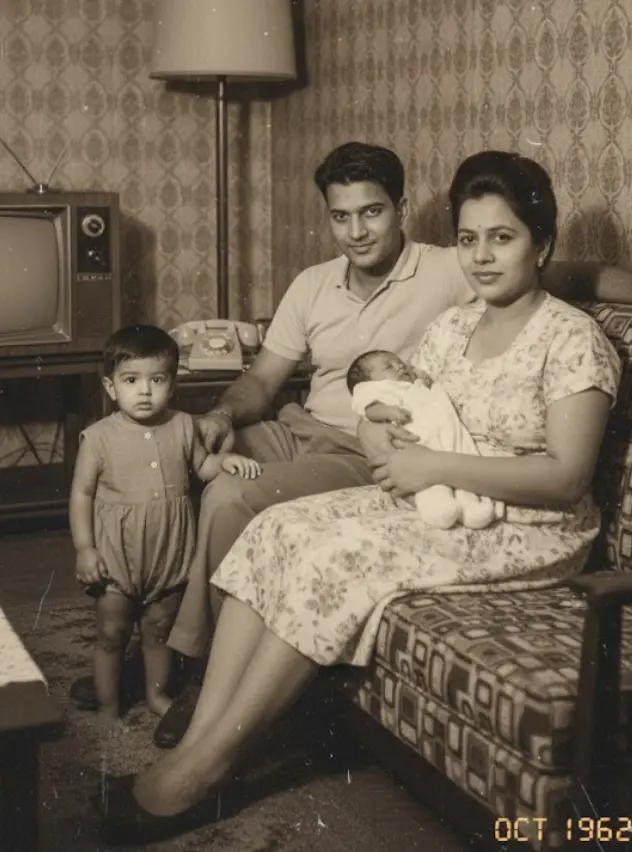
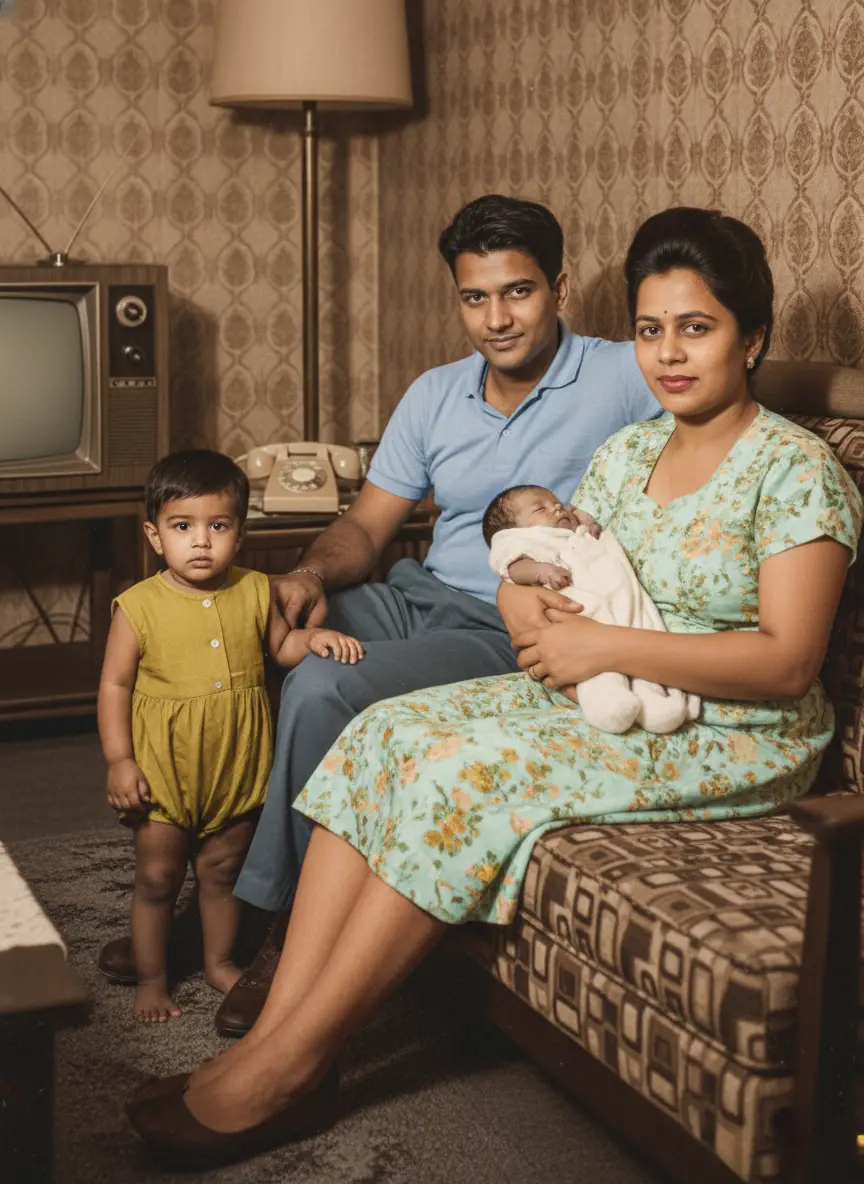
AI Old Photo Animation
To Make Your Memories Come Alive
Turn one clear portrait into a five-second silent video with a gentle smile, blink, nod, or head movement. AI motion can change facial details, so preview the result carefully before downloading.


How to Animate Old Photos with AI
Upload one portrait, choose the kind of movement you want, and review the generated five-second video before downloading it.
- 01
Upload Still Photo
Upload one JPG, PNG, GIF, or WebP image up to 10MB.
A clear, prominent face usually gives the motion model the strongest reference.
Step 01 Complete - 02
Select Facial Motion Style
Choose a gentle smile, blink and head tilt, warm gaze, soft nod, or another motion preset.
Each preset guides the expression and movement generated from your still image.
Step 02 Complete - 03
AI Generates Motion Video
BringBack generates a five-second video from your image and selected preset.
Movement and facial details can vary, especially when the source is blurry, damaged, or crowded.
Step 03 Complete - 04
Preview & Download Video
Watch the generated video in your dashboard and download MP4 format for sharing.
Share with family or store in your private Memory Book keepsake.
Step 04 Complete
Choose Your Respectful
Animation Style
Each preset guides a different kind of movement. Start with the smallest motion that fits the portrait and compare the face with the original.
Clear, restored portraits usually animate more consistently than tiny, blurred, scratched, or heavily compressed faces.
Gentle Smile
A gradual smile with restrained facial movement. Clear, front-facing portraits usually provide the best reference.
Smile + Wave
Adds a smile and attempts a short hand wave. Use a photo where the upper body and hands are visible for a more usable result.
Subtle Blink + Head Tilt
Adds a blink and small head tilt while keeping the rest of the frame relatively still.
Smile + Look Around
Adds a smile with eye and head movement. Review eye direction and facial details before using the clip.
Warm Gaze
Uses restrained eye movement and a slight smile for a quieter portrait animation.
Soft Nod
Adds a small nod with limited background movement, suited to formal or tightly framed portraits.
Peaceful Presence
Uses minimal breathing and facial movement when you want less change from the source image.
Loving Recognition
Adds soft eye movement and a small smile. Results are most predictable when faces are clear and similarly sized.
Gentle Talking
Adds speech-like mouth and facial movement without generating audio. It does not recreate the person's real voice or mannerisms.
AI Photo Animation
Made for Real Memories.
Choose a motion style, understand where results can vary, and keep control of the generated video through your My Media account.
Natural Animation Styles
Choose from presets such as Gentle Smile, Smile + Wave, Blink + Head Tilt, Warm Gaze, and Soft Nod. Preview the result because motion and likeness can vary.
Built for Family Memories
Use a restored portrait in a family slideshow, memorial keepsake, genealogy project, or private Memory Book when a short motion clip suits the story.
High-Resolution MP4 Output
Download the generated five-second MP4 for personal slideshows, compatible digital displays, or family storytelling projects.
Private by Default
Photos are processed securely for the feature you request. Generated files stay in your account until you delete them. Memory Book keepsakes are stored only when you explicitly save them. We do not use your family photos to train general-purpose AI models.
Pay once.
No subscription.
Exact credit costs: restore 1, family portrait / add person 2, animation 10, hug video 19. Starter cannot fund animation or hug.
Restoration Starter
Low-risk way to restore a few important photos. Not enough credits for animation or hug video.
Value Pack
Enough credits for restorations plus animation or family reunions.
Family Pack
For albums, multi-person projects, and the private Family Memory Book.
Common
Questions.
Here are the real questions people ask about bringing their photos to life.
Will it look weird or create the 'uncanny valley' effect?
AI motion can sometimes change eyes, teeth, face shape, or expression. Choosing a subtle preset and a clear source photo usually reduces those changes, but you should always preview the face closely before sharing the video.
What file types and image quality work best for AI photo animation?
You can upload JPG, PNG, and WEBP photos. Clear portraits with visible facial details produce the most realistic animations. If your image is blurry, torn, or faded, run it through restoration first to improve facial landmarks before animation.
Which animation styles can I choose from?
You can choose from Gentle Smile, Smile + Wave, Subtle Blink + Head Tilt, Smile + Look Around, Warm Gaze, Soft Nod, Peaceful Presence, Loving Recognition, and Gentle Talking. Each style is designed for subtle, respectful, natural movement.
Can I animate a photo with multiple people in it?
You can upload a group photo, but the result is less predictable than a portrait with one clear primary face. People may move differently or facial details may change, so review every visible person in the generated clip.
What happens to my photos after I upload them? Is my data used for AI training?
We process uploads to deliver the feature you requested (restore, animate, reunite, etc.). Generated media is stored in your account so you can download it later; you can delete media anytime from My Media. Family Memory Book content is stored only when you explicitly create a keepsake. Third-party processors (hosting, payments, AI inference) handle data only as needed to run the service. See our Privacy Policy for processors and retention details.
Can I animate low-quality, blurry, or very old photos?
The model needs visible facial features to guide movement. If scratches, blur, fading, or a very small face obscure those features, restore or crop the image first. Restoration can provide a clearer reference, but it cannot guarantee an exact animation.
Can I choose which person in a group photo gets animated?
Currently, our AI automatically detects the most suitable face for animation in a photo. We recommend cropping the photo to focus on the individual you'd like to animate before uploading to ensure the best result.
Can I use the animated videos for commercial purposes?
BringBack's standard Terms cover personal, non-commercial use unless otherwise agreed. Only upload photos you own or have permission to use, and contact support before using an animation commercially.
How many credits does animation cost?
Each animation uses 10 credits. The Restoration Starter pack ($4.99 / 4 credits) is not enough for animation. Use the Value Pack ($9.99 / 20 credits) or Family Pack ($21.99 / 60 credits).
What's the difference between your service and free animation apps?
BringBack offers nine selectable motion presets, pay-once credits, and a My Media account where generated videos remain available until you delete them. Compare output quality, pricing, and each provider's privacy policy before choosing a tool.
Will the animation add sound to my photo?
No. Photo Animation creates a silent five-second video. The Gentle Talking preset adds speech-like facial movement but does not generate or recreate a voice.
More Tools to Preserve Your Family Memories
Restore Damage
Repair scratches, tears, and sepia fading while preserving authentic facial character.
Reunite Loved Ones
Combine separate individual photos into one natural, high-definition family portrait.
Add Person to Photo
Seamlessly insert a missing relative or passed loved one into an existing family snapshot.
Colorize Black & White
Bring historical black & white photographs to life with historically accurate realistic colors.
Ready to restore
your memories?
Every photo holds a story. Don't let damage steal your precious moments. Restore them forever in seconds.