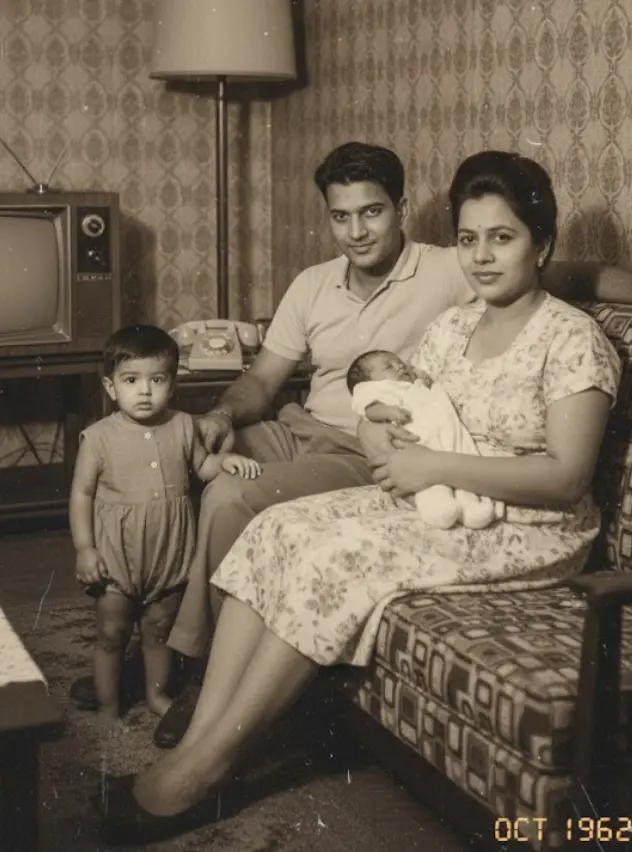
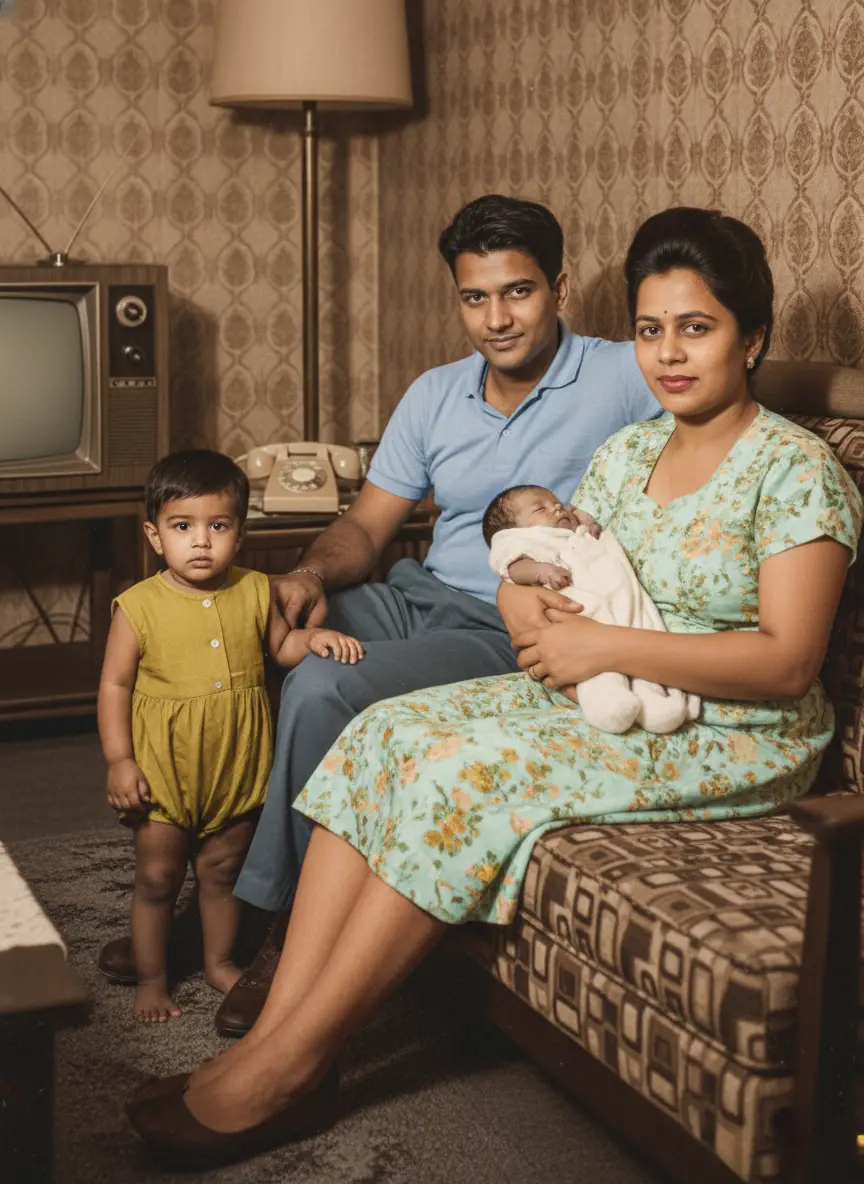
AI Old Photo Restoration
for your family's
cherished memories.
Fix scratches, tears, fading, water marks, and blur. Choose restore-only to keep black-and-white or sepia, or restore and colorize when you want color. Missing facial detail may be reconstructed — always compare before you download.


Common Old-Photo Damage.
One Reviewable Workflow.
Explore how scratches, tears, stains, fading, and blur can respond differently—and what to check before accepting a generated repair.
Fix Scratched & Creased Photos
Over decades, physical photographs naturally accumulate surface damage. Fine scratches from sliding against other prints, deep creases from being folded in wallets, and spiderweb cracks across the emulsion layer can obscure the faces of your loved ones.
BringBack generates a repaired digital version by interpreting damaged areas in the context of nearby pixels. Fine, isolated marks are usually easier to address than broad scratches crossing a face.
Reconstruction can introduce plausible details that were not visible in the scan. Use the comparison slider to check hair, clothing patterns, facial features, and texture against the original.


Repair Torn & Ripped Photos
Digital restoration can reduce the appearance of a torn corner, a clean rip, or small missing pieces along an edge when the surrounding image still provides enough context.
The model estimates what may belong in a gap from the neighboring shapes, tones, and textures. That estimate is not the exact information that was physically lost.
For the best starting point, place torn pieces as close to their original alignment as possible and scan them together on a flat, evenly lit surface.
Fix Water Damaged & Stained Photos
Water rings, humidity marks, mold spots, and ink stains can cover both the paper surface and important image detail. Light, localized marks are generally easier to reduce than opaque damage across a face.
BringBack uses the visible surroundings to generate a cleaner version of stained areas. Where the original information is hidden, the output may contain reconstructed rather than recovered detail.
Compare the result at full size, especially around faces, text, jewelry, and patterned clothing, before deciding whether it is suitable for printing.


Restore Faded & Yellowed Photos
Exposure to sunlight and the natural degradation of photographic chemicals cause old photos to lose their contrast and take on a faded, yellow, or reddish tint. Detail is lost in the shadows, and highlights become blown out.
Restoration can rebalance contrast and reduce a strong color cast where detail is still present. Completely washed-out highlights and blocked shadows may not contain enough information to recover faithfully.
Choose restore-only to keep black-and-white or sepia character, or restore and colorize when you intentionally want interpreted color.


Unblur & Sharpen Old Photos
Vintage cameras often had slow shutter speeds, resulting in motion blur or slightly out-of-focus subjects. When combined with the natural softness of old film stock, faces can lack the crispness we expect today.
AI can add definition to a soft face, but it cannot know details that the camera never captured. Strong blur and very small faces increase the chance of invented eyes, teeth, skin texture, or other features.
Use the clearest scan available and inspect the downloaded pixel dimensions and reconstructed facial details before ordering an enlargement.


How to Restore Old Photos
Upload the clearest scan you have, choose whether to preserve its original tone, and compare the repaired version before downloading.
- 01
Upload Faded or Damaged Photo
Upload your scanned physical photo, wallet print, or smartphone snapshot.
Clear scans give the model more information to work with when reducing scratches, tears, stains, and fading.
Step 01 Complete - 02
Choose Restoration Settings
Select restore-only to keep original B&W/sepia, or restore + colorize.
Color is optional, and any reconstructed facial detail should be compared with the original.
Step 02 Complete - 03
AI Repairs Damage Automatically
BringBack generates a repaired digital version and reconstructs missing areas when needed.
Results vary with the amount of surviving detail; reconstruction is not recovery of the exact original pixels.
Step 03 Complete - 04
Compare & Download High-Res
Review your photo side-by-side with an interactive slider before downloading.
Check the downloaded pixel dimensions before ordering a large print or wall frame.
Step 04 Complete
Two Clear Modes.
One Transparent Approach.
Each restoration costs 1 credit. Choose whether to keep the authentic character or add color — color is never forced.
Restore Only
Repair visible damage while keeping the source photo black-and-white, sepia, or in its existing color treatment. Choose this when preserving the familiar look matters more than adding color.
Restore & Colorize
Repair visible damage, then add AI-generated color as an interpretation—not historical proof of the original clothing, skin, or background colors.
Damage the Tool Can Address
- Scratches, creases, and folding cracks
- Fading and sepia yellowing
- Water marks and mold spots
- Soft focus and motion blur
- Scan glare and heavy film grain
What AI May Change
When facial detail is missing, damaged, or very low resolution, AI may reconstruct plausible features rather than recover the exact original face. Always compare the result to the original before sharing or printing.
AI color is an interpretation, not historical proof of original colors. Prefer restore-only when you want to keep black-and-white or sepia character.
Best Scan Practices
- •Flat scan of the print when possible
- •Phone scan on a dark background with even light
- •Avoid strong glass frame reflections
- •Upload the highest resolution file available
Print quality depends on input resolution. Check downloaded pixel dimensions before ordering large prints.
When Not to Use AI Restoration
Know when professional physical conservation is required
Photos are processed securely for the feature you request. Generated files stay in your account until you delete them. Memory Book keepsakes are stored only when you explicitly save them. We do not use your family photos to train general-purpose AI models.
Explore Related Tools & Guides
Continue editing or discover specialized workflows
Advanced AI
Restoration Features.
The restoration workflow combines practical repair options with clear limits, so you can choose the treatment and judge the result for yourself.
Repair in Your Browser
Upload a scan, generate a repaired version, and compare it with the original before downloading.
Keep the Vintage Character
Choose restore-only when you want to retain the familiar black-and-white, sepia, or existing color treatment.
Address Common Damage
Reduce visible scratches, tears, fading, stains, and creases when enough surrounding detail remains.
Facial Detail Enhancement
The model may reconstruct soft or missing facial details. Compare the result closely because those details may not be historically exact.


Optional AI Colorization
Add interpreted color only when you want it; colorization is not evidence of the original historical colors.

Compare with the Original
Use the before-and-after view to check faces, expressions, clothing, and reconstructed areas before sharing or printing.
Private Account Storage
Generated media stays in My Media until you delete it, and family photos are not used to train general-purpose AI models.

Results Depend on the Source
A clearer scan usually provides more usable detail. Very large missing areas or destroyed faces may require a manual restoration specialist.
Make your photos
with AI Photo Animation.
Transform still old photos into realistic videos. Choose from a variety of emotional expressions and gestures.
Explore AI Photo Animation GuideGentle Talking
AI Photo Animation created from a single still image.
Pay once.
No subscription.
Exact credit costs: restore 1, family portrait / add person 2, animation 10, hug video 19. Starter cannot fund animation or hug.
Restoration Starter
Low-risk way to restore a few important photos. Not enough credits for animation or hug video.
Value Pack
Enough credits for restorations plus animation or family reunions.
Family Pack
For albums, multi-person projects, and the private Family Memory Book.
Choose the Restoration
Approach That Fits.
AI, manual restoration, and basic editors solve different problems. Use the level of control your photograph actually needs.
Features
Manual Pros
Free Tools
BringBack AI
Automated optionManual Services
Questions
& answers.
Everything you need to know about AI photo restoration and how BringBack works.
Can AI restore photos with water damage or mold stains?
BringBack can reduce some water marks, ink stains, and mold spots when enough surrounding detail remains. Opaque damage may hide information that cannot be recovered, so the model may reconstruct a plausible replacement that should be compared with the original.
My old photos are very blurry. Can you sharpen faces?
The tool can add definition to a soft face, but strong blur or a very small face gives it less reliable information. Reconstructed eyes, teeth, skin texture, and other details may differ from the person you remember.
How do I repair a torn photo or one with scratches and creases?
Scan torn pieces flat and as close to their original alignment as possible. The model uses surrounding shapes and texture to reduce cracks and fill gaps, but large missing areas may need a manual restoration specialist.
Can I restore a photo and colorize it at the same time?
Yes. Choose restore and colorize when you want damage repair plus interpreted color, or choose restore-only to retain black-and-white, sepia, or the source photo's existing color treatment.
Is it safe to upload my private family photos?
We process uploads to deliver the feature you requested (restore, animate, reunite, etc.). Generated media is stored in your account so you can download it later; you can delete media anytime from My Media. Family Memory Book content is stored only when you explicitly create a keepsake. Third-party processors (hosting, payments, AI inference) handle data only as needed to run the service. See our Privacy Policy for processors and retention details.
Can I restore without colorizing?
Yes. Use restore-only to keep the original black-and-white, sepia, or color character. Colorize only when you explicitly want color — AI color is an interpretation, not historical proof of original dyes.
Will AI change the face of someone I remember?
When facial detail is missing, damaged, or very low resolution, AI may reconstruct plausible features rather than recover the exact original face. Always compare the result to the original before sharing or printing.
How much does one restoration cost?
One restoration uses 1 credit. The Restoration Starter pack is $4.99 for 4 credits. Credits never expire. Failed generations that the system can detect may be refunded automatically.
What is the best way to scan old photos?
A flat scan or a well-lit phone scan on a dark surface works well. Avoid glare from glass frames when you can. Higher detail helps, but we do not require a specific DPI claim — upload the clearest file you have.
Will the restored photo be good enough to print?
Many restorations print well at common sizes (for example 4×6 or 5×7). Output quality depends on the input resolution and damage. Check the downloaded pixel dimensions before ordering large prints.
Can I animate my photo after restoring it?
Yes. Restoring first usually improves faces for animation. Animation costs 10 credits (not covered by the 4-credit Starter pack alone).
Ready to restore
your memories?
Every photo holds a story. Don't let damage steal your precious moments. Restore them forever in seconds.