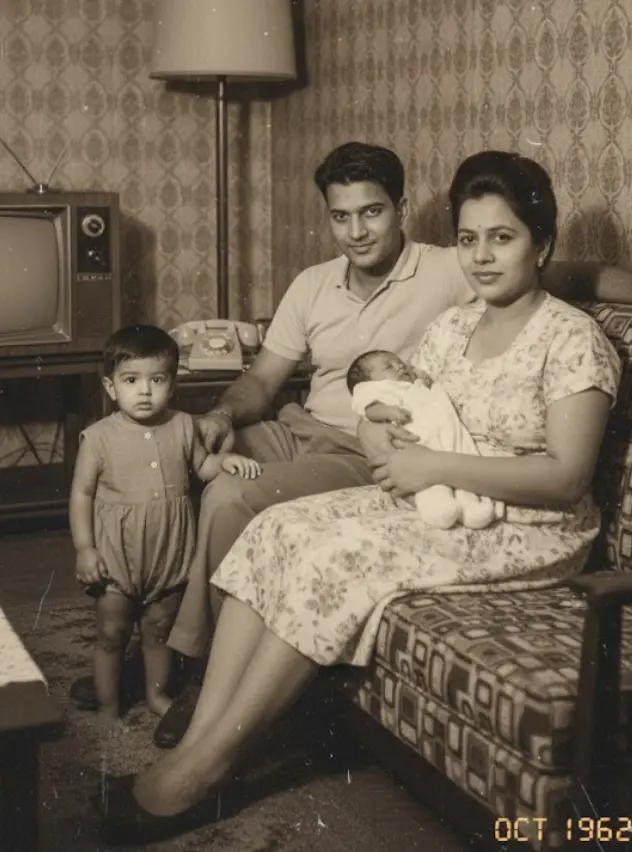
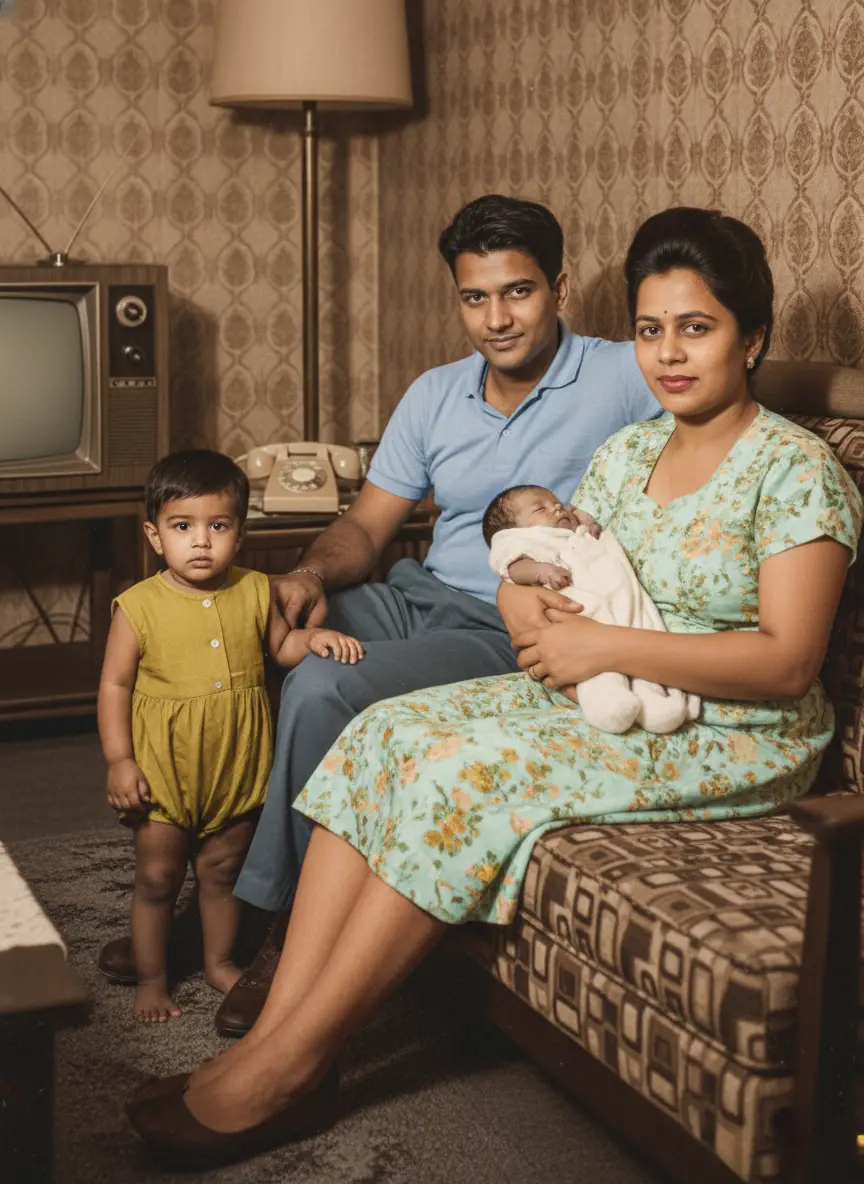
Live Portrait technology works by using Generative Adversarial Networks (GANs) or Diffusion models to map the movement of a “driving video” onto a static “source image.”
The AI identifies key facial landmarks—like the corners of the eyes and mouth—on the photo and warps pixels to match the expressions and head tilt of the driving video, frame by frame, creating a seamless animation from a single JPEG.
We’ve all seen the “Harry Potter” effect: a dusty photo of a grandparent suddenly blinking, smiling, or looking side-to-side. It feels like magic, but it’s actually a sophisticated dance of mathematics. You don’t need a film crew or a 3D scanner anymore—just one photo and the right code.
Here is the 3-step technical process of how a static face learns to move:
Step 1: Facial Landmark Detection: The AI scans your photo to map 68+ distinct points (nose tip, jawline, eye contours) to understand the face’s geometry.
Step 2: Motion Driving: A secondary “driving video” (a pre-recorded human moving their head) serves as the puppet master. The AI extracts the motion data from this video without taking the identity.
Step 3: Pixel Warping & Inpainting: The engine “warps” the pixels of your photo to follow the driver’s motion. If the head turns and reveals a part of the neck that wasn’t in the original photo, the AI “inpaints” (hallucinates) the missing texture to fill the gap.
What is an AI Live Portrait Generator?
What powers our lifelike animations? It is all about reenactment technology.
We use AI to map the movement of a video onto the stillness of a photo.
- First, the AI pinpoints facial landmarks on your source image.
- Next, it tracks human movements from a driving video.
- Finally, it maps those motion vectors onto the still photo.
The result is a realistic expression that feels human.
If you are worried about unnatural movements, we use advanced stitching to blend the animated face back into the original photo.
We also include retargeting control to adjust the intensity of expressions. You can read the original research paper for a deeper look at these breakthroughs.
Prerequisites for High-Quality Animation
To get the best results, we recommend following a few simple guidelines.
- Front-Facing Portrait: Ensure the face is clearly visible.
- 1:1 Aspect Ratio: Square images prevent unnatural stretching.
- NVIDIA GTX 1060 (6GB VRAM): The baseline if you choose to run software locally.
Proportions matter.
The algorithm maps points from the driving video directly onto the photo. A 1:1 ratio helps maintain natural proportions and improves the final quality.
If your photo isn’t square, just crop it using any standard editor. Ensure the face remains the central focus.
Choosing the Right Tool for Your Needs
The right choice depends on your technical comfort level.
- BringBack: We designed this for simplicity. It excels at restoring and animating old photos in one step.
- HeyGen: A solid choice for business marketing or API access. Their Pro plans currently start at $99/month.
- Local ComfyUI: This is where the power users tinker. Expect to spend time configuring code and troubleshooting dependencies.
We handle the heavy lifting so you can focus on your memories. Our tool automates the photo restoration process for you.
How to Animate Your Portrait: A Step-by-Step Guide
- Upload your photo to BringBack. Use the highest resolution available, as blurry sources lead to blurry animations.
- Configure your settings. Choose a driving video and adjust the intensity slider. Subtlety is usually the key to realism.
- Generate your live portrait. Our servers typically process the animation in under a minute.
- Share your reborn memory. Download the file and share it with your family to spark connection.
Preparing Your Assets
Quality source materials lead to better results.
Choose a clear photo for the most accurate landmark detection. We have found that picking a driving video that matches the face shape of your photo creates the most natural look.
The person in your driving video should avoid rapid head turns. Quick movements can confuse the tracking. Small, subtle changes make the biggest difference.
Installing and Launching the Tool
If you use BringBack, you skip the installation entirely. We offer one-click animation on our platform.
However, if you are setting up a local ComfyUI environment, use the Custom Node Manager. This simplifies dependency management and stops you from hunting for missing files.
The GitHub repository for LivePortrait is the authoritative source for the code and model weights.
Be warned that local installs can get complex. We spent countless hours streamlining this process so you don’t have to wrangle code.
Configuring Parameters for Realism
Getting realism right means understanding two key settings.
Stitching Mode blends the animated face back into the original photo. We have found this gives the most natural look by keeping the background stable.
Non-Stitching Mode can feel more raw, but it often fails to integrate well with the background.
The Motion Multiplier controls how intense the animation is. If it is too high, the face looks unnatural. If it is too low, the movement is barely there.
Start with a subtle setting and iterate.
Fine-Tuning and Troubleshooting
If you see a vibrating background, lower the stitching weight. This happens when the AI struggles with seamless integration.
To avoid the ‘uncanny valley’, use Retargeting Control. This allows you to manually adjust how sensitive the eyes and mouth are to the driving video.
If you are running local software and it crashes, check your CUDA drivers.
We have found that Python 3.10.x is the most stable version for this technology. Newer versions like 3.12 often introduce dependency conflicts.
If you see visual artifacts (digital noise), increase the denoising strength. Do this in small steps to avoid softening the image too much.
Handling Artistic or Cartoon Faces
Can you animate sketches or cartoons? Yes, but it requires a lighter touch.
Cartoons often have exaggerated features that can confuse the algorithm. We recommend lowering the weight adjustments and increasing the ‘identity lock’ strength.
This keeps the animation true to the original drawing without looking bizarre.
The BringBack Advantage: Preserving Legacy Safely
We built BringBack to provide a ‘Nostalgic Hug‘.
Our goal is to combine animation with photo restoration so you can relive precious moments. We protect your legacy with three core pillars:
- We delete your media immediately after processing.
- We use Identity Lock to ensure faces stay true to the original person.
- We offer a pay-as-you-go model with no recurring fees.
Focus on your memories. We’ll handle the tech.